Talk with our engineers by joining the new Onehouse community Slack!
TL;DR
A managed lakehouse generates a steady stream of events across ingestion flows, Spark jobs, table services and clusters, and different teams are responsible for different ones. Notification Rules let you decide, per resource and per event, who is told and on which channel. Every Onehouse project starts with default rules, a rule can be scoped to the exact flows or jobs a team owns, and alerts go out by email, Slack or the in-app feed as events happen.
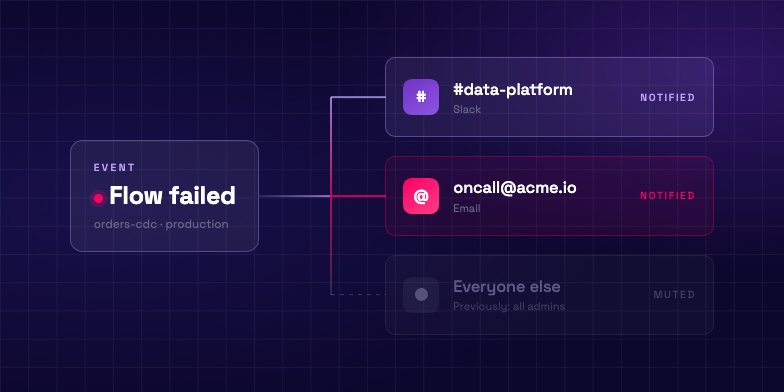
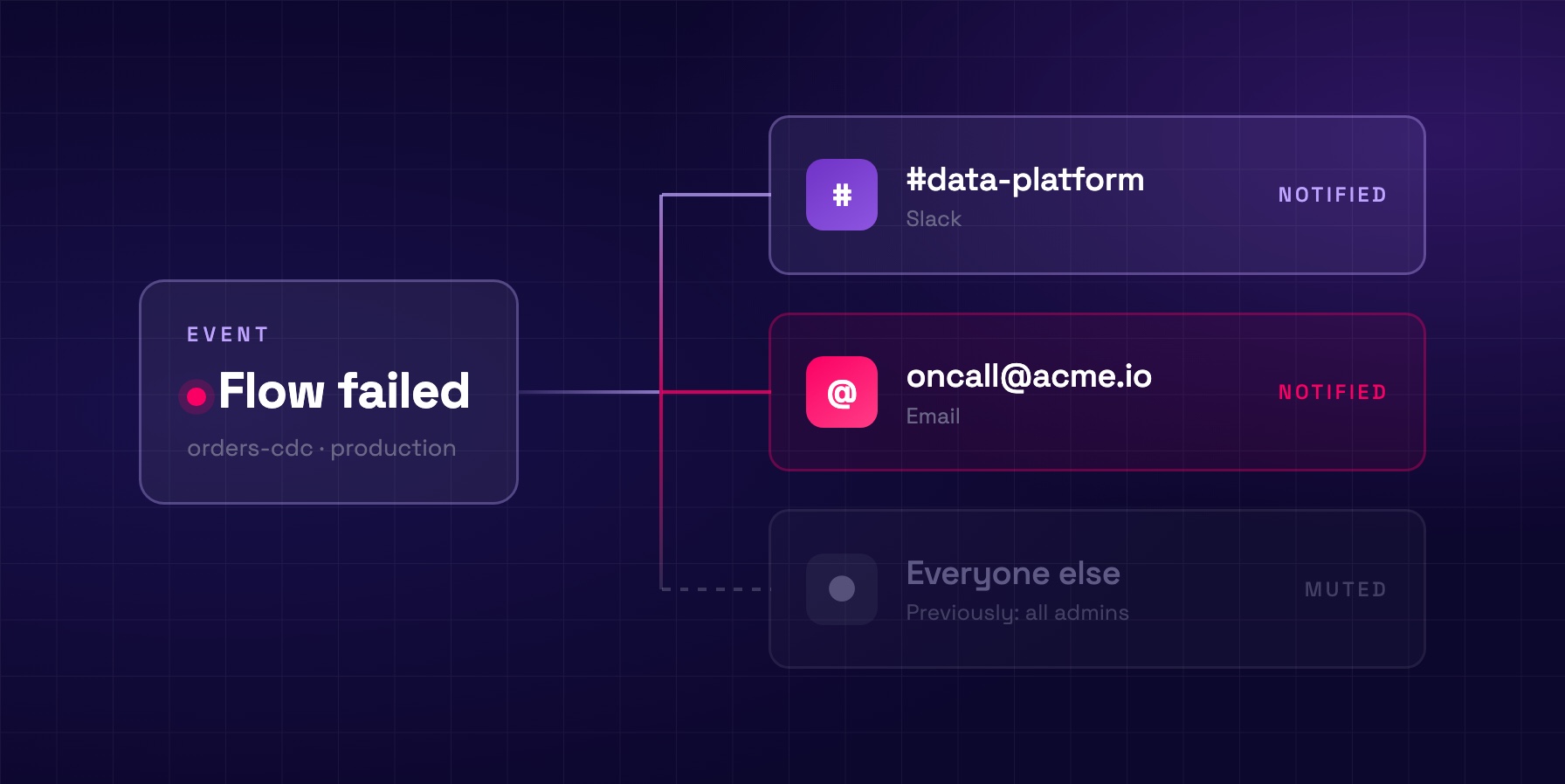
Today we are introducing Notification Rules in Onehouse, a way to decide who is told when something happens to a resource in your project. You can route failures on the ingestion flows your finance team owns to the finance team, send table sync delays to Slack and flow failures to your on-call alias, or tell the engineer who created a job when that job fails. Rules are configured per project in the Onehouse console.
One project produces events from several components all day
A single Onehouse project produces lifecycle events all day, from several different components. OneFlow pipelines ingest from databases, streams and object storage around the clock. Quanton runs scheduled Spark jobs on top of those tables. Table services compact, cluster and clean every table in the background, and clusters scale up and down with the load. Each of these reports what it is doing: a job finished, a table’s sync is running late, a cluster stopped, a table service failed.
Routing those events by role stops working once a project has more than one team in it, because a role says nothing about who owns a resource. As more teams move onto the platform, the finance team owns a dozen ingestion flows, the marketing team owns another dozen, and the platform team owns the clusters that run all of them. An alert about a late finance flow is relevant to the engineer who owns that flow, and the other teams have no reason to see it. Role-based alerting sends it to everyone who holds the admin role anyway, so the alerts that matter to a given person arrive in the same stream as the ones that do not, and after a while people filter the whole stream into a folder. A shared notification address for the project produces the same result in a shared inbox.
Introducing Notification Rules
A notification rule says: for this kind of resource, when these events happen, tell these people, on these channels.
| Part | What it does |
|---|---|
| Resource type | Jobs, Flows, Table Services, Clusters, Tables, or the organization (project-wide events such as OCU limit changes) |
| Scope | Every resource of that type, or a specific list you choose (Jobs, Flows, Table Services and Clusters) |
| Conditions | Which events fire the rule: a job failing, a flow pausing, a table’s sync falling behind, a cluster failing or stopping |
| Recipients | Project Admins, the person who created the resource, and specific addresses |
| Channels | Email and Slack, plus the in-app notification feed, which is always on |
Scope is the part that lets routing follow ownership. A rule on Jobs, Flows, Table Services or Clusters can be narrowed to named resources, so one rule can cover the three production flows a team owns and nothing else. Rules are a project-level setting under Notification Hub → Rules in the left navigation. Project Admins can create and edit them, and everyone else in the project sees a read-only list. The rule builder restates the assembled rule in one sentence before you save it, and warns you when a rule would fire frequently.
How it works
Every project starts with default rules that reproduce the alerting it already had, so nothing changes until you edit a rule. The defaults cover job, flow, table service and cluster failures, flow lifecycle events, table sync delays and a few platform events, and route them to Project Admins. The rules list is the complete picture of who is told about what. When a default rule covers an event your team does not act on, disable it or narrow its recipients to the one person who does. A disabled or deleted default stays that way across upgrades and does not fall back to role-based routing, so the alert is no longer sent for that project.
From there, three kinds of rule cover most routing needs: by team, by urgency and by creator. Routing by team is one rule per team: pick resource type Flows, scope it to the flows that team owns, set the condition to Failed, add the team’s distribution list as the recipient and choose Email. Routing by urgency is two rules: a Tables rule that sends Sync delayed to Slack, where someone checks during the day, and a Flows rule that sends Failed to email and the on-call alias. Routing by creator adds the person who created the job as a recipient on a Jobs rule alongside the platform team list, so the engineer who wrote the job finds out first and the rule keeps working as jobs are added and people join or leave the team.
Notifications now go out as each event happens. Email used to be sent on a short periodic schedule, which grouped the events from one interval into a single message; delivery is now immediate and tracked per destination, so the email, the Slack message and the in-app entry for one event each arrive on their own, and two events that used to arrive together in one email now arrive as two. Delivery is at least once per destination, so in rare cases a notification can arrive twice.
Routing is consolidated into rules for the events that rules cover. A project that had a Notifications Email configured finds that address as a recipient on its existing rules, receiving the same alerts it received before, and you can keep it on the alerts your team acts on and remove it from the rest. The setting itself stays in Project Settings and now does one job: it receives the notifications your rules do not cover, such as missed records, source health and API-key expiry. A rule you create starts with only the recipients you choose for it.
Why this matters for a managed lakehouse
A managed lakehouse takes the operating work off your teams, and part of that work is telling the right person when something needs attention. With routing by resource and owner, each team sees a short list of alerts about the flows, jobs and clusters it owns, and a failure reaches the engineer who can act on it without passing through a mail filter first. Notification Rules join OneSync permissions and the in-app observability features that already let you govern and monitor an open lakehouse from one console.
Get started
Notification Rules are available in every Onehouse project today. Open Notification Hub → Rules in the console to see your project’s defaults and start scoping them to the teams that own the work. Not yet using Onehouse? Start your free trial today.
Notification Rules FAQ
What can a notification rule alert on?
A rule can alert on Jobs, Flows, Table Services, Clusters, Tables and organization-level events, each with its own conditions, such as a job failing, a flow pausing, a table’s sync falling behind, or a cluster failing or stopping.
Which channels does Onehouse deliver alerts to?
A rule can deliver to email and to your project’s Slack integration, and every rule also writes to the in-app notification feed.
Do I need to configure anything to keep my existing alerts?
No. Every project starts with default rules that reproduce the alerting it already had, routed to Project Admins — or to your project’s Notifications Email if one is set.
What happens to my project’s Notifications Email?
It keeps working. Your existing rules now name that address directly as their recipient, so the alerts it received before still reach it. If a rule covers events your team does not act on, disable the rule or point it at the right people — the address is the only recipient on it, so clearing it would leave that rule notifying nobody. The address also stays in Project Settings, where it receives the notifications rules do not cover.
Can I stop receiving a particular type of alert?
Yes. A Project Admin can disable the rule for that event or narrow its recipients, and a disabled rule stays disabled.