Talk with our engineers by joining the new Onehouse community Slack!
TL;DR
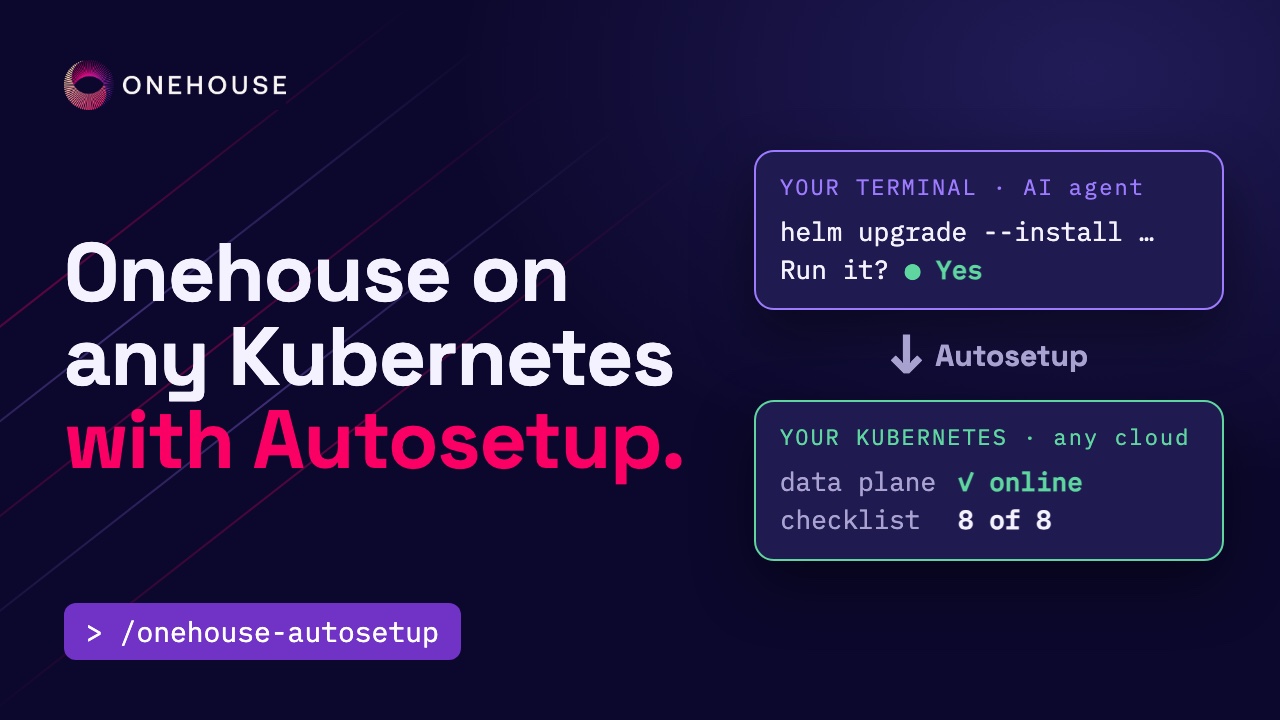
Onehouse Autosetup™, the onehouse-autosetup skill, turns the Onehouse Bring-Your-Own-K8s runbook into one conversation with the AI coding agent you already use. It works through your own kubectl, helm and Onehouse CLI, shows every command before it runs, and never sees your storage secret. On Amazon EKS with four m6a.xlarge nodes, the preflight passed on the first run and the data plane was ready about 23 minutes after we approved it. We then wrote 1,000 orders to an Iceberg-readable table with a Spark job on Quanton, and got the same revenue by region from Lakegres in Superset, which runs inside the cluster.
Setting up Onehouse on any Kubernetes, with Autosetup
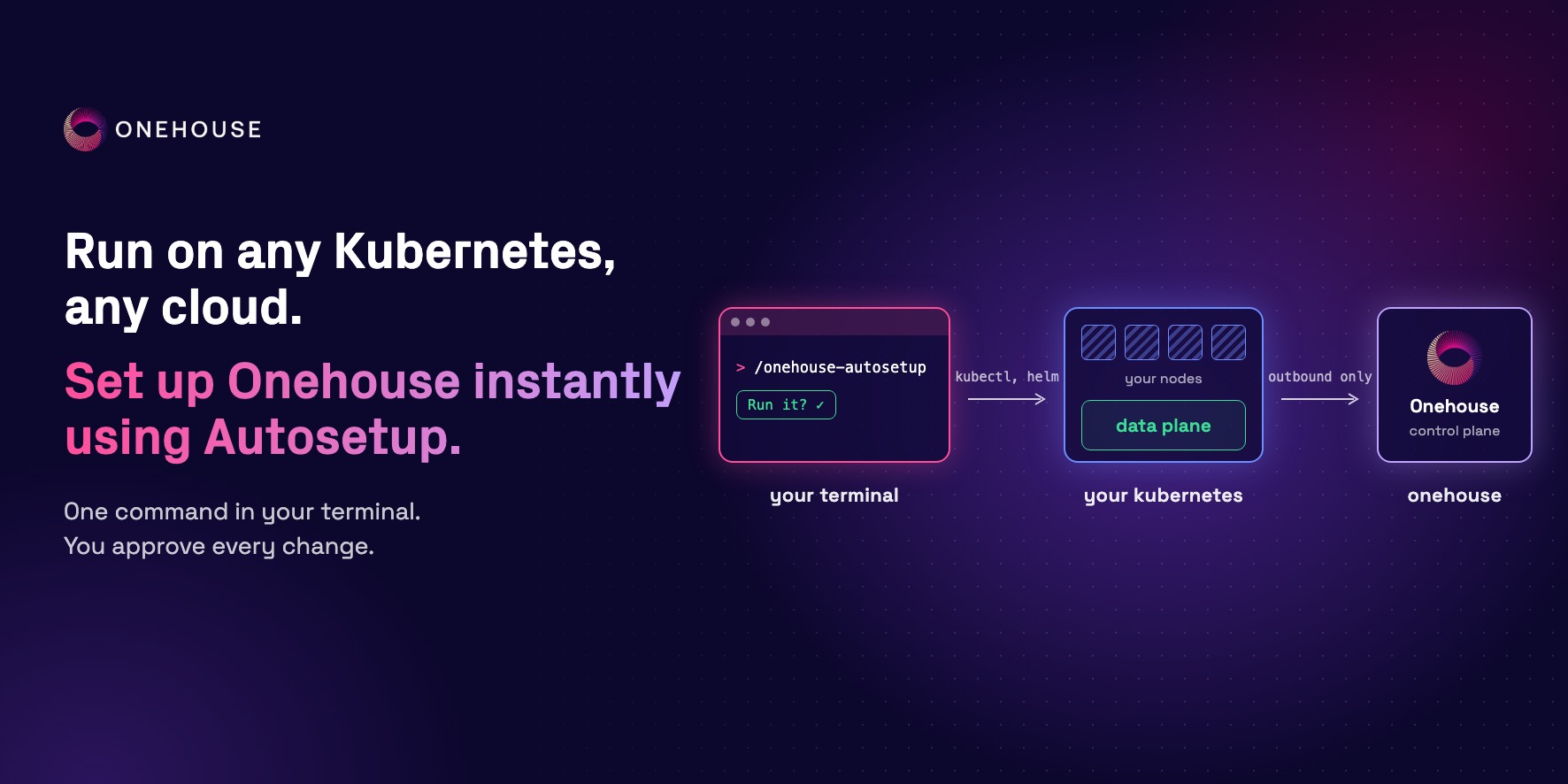
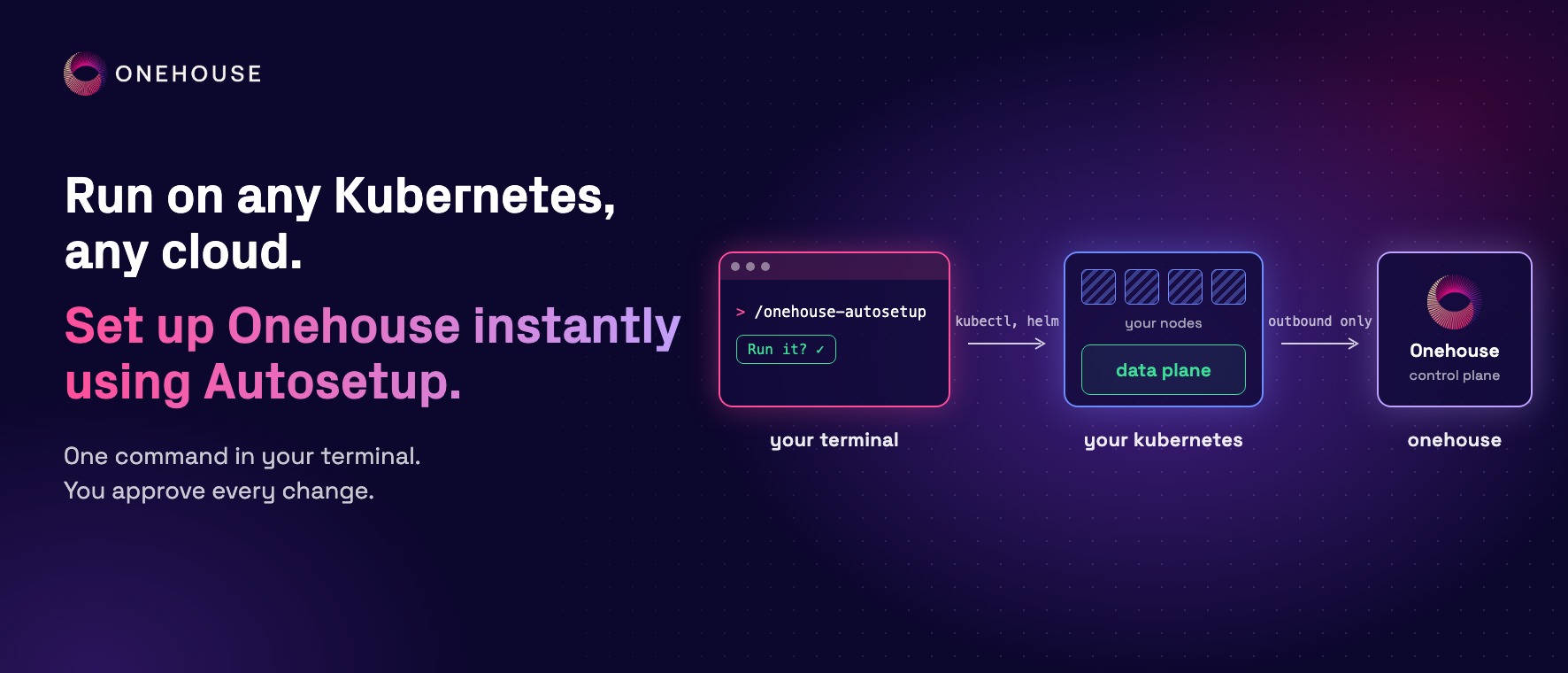
Onehouse Bring-Your-Own-K8s runs the Onehouse data plane on your own Kubernetes cluster, next to the rest of your stack, and keeps your tables in your own bucket. Onehouse runs the control plane. Setting it up used to mean an eight-step runbook. With Autosetup, you run one command and your AI coding agent walks you through the rest: the onehouse-autosetup skill checks the cluster, asks before every change and ends with a working data plane.
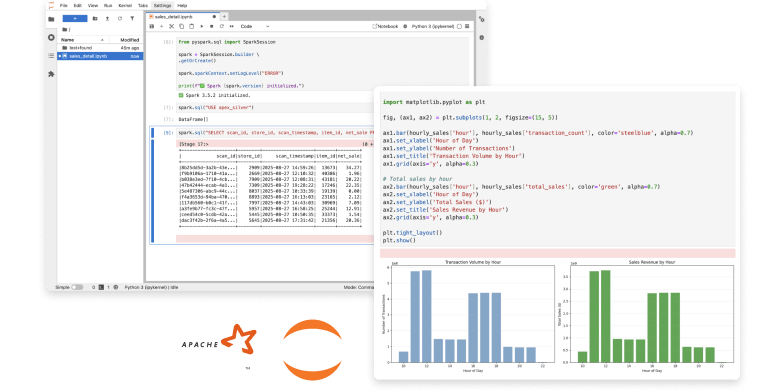
Below, we onboard an Amazon EKS cluster from an empty folder and then put the data plane to work: an Apache Spark™ job on Quanton writes a table readable as Apache Iceberg™, and a SQL query in Apache Superset™ reads it through Onehouse Lakegres™.
The problem: an eight-step runbook
A platform team has a Kubernetes cluster and an S3-compatible bucket, and wants Onehouse to run its Spark and SQL workloads there. The documented setup has eight steps, and each one is simple on its own. Among them:
- Label every node group with the roles Onehouse schedules onto
- Pick a default StorageClass if the cluster has none
- Create a bucket and a scoped key, then register the storage with Onehouse
- Generate a values file and install the connect chart with Helm
- Read the preflight report, fix what it flags, then provision and wait
Done by hand, the runbook means copying values between a terminal, a browser and the docs. Two mistakes are easy to make: pasting a secret where it shouldn’t go, and running a command against the wrong cluster.
The result
With the skill, the same setup is one conversation. In our run on Amazon EKS:
| Item | Result |
|---|---|
| Commands you type | the install command, /onehouse-autosetup, oh-configure and oh login; you sign in to Onehouse in your browser |
| Changes made without approval | none; every command was shown first and ran only after we allowed it |
| Storage secret in the chat | never; it went from a local form to the Onehouse CLI |
| Preflight | passed on the first run |
| Data plane ready | about 23 minutes after we approved it |
| Cluster | Amazon EKS, 4 × m6a.xlarge (2 essential, 1 worker, 1 repair) |
| First table | 1,000 orders written and read back by a PySpark job on Quanton |
| Same table as Iceberg | metadata next to the same data files in your bucket |
| Lakegres query in Superset | the same revenue by region as the Spark job |
How it works
The agent runs on your machine and the data plane runs in your cluster. Inside your cluster, only dp-connect talks to Onehouse, and only outbound:
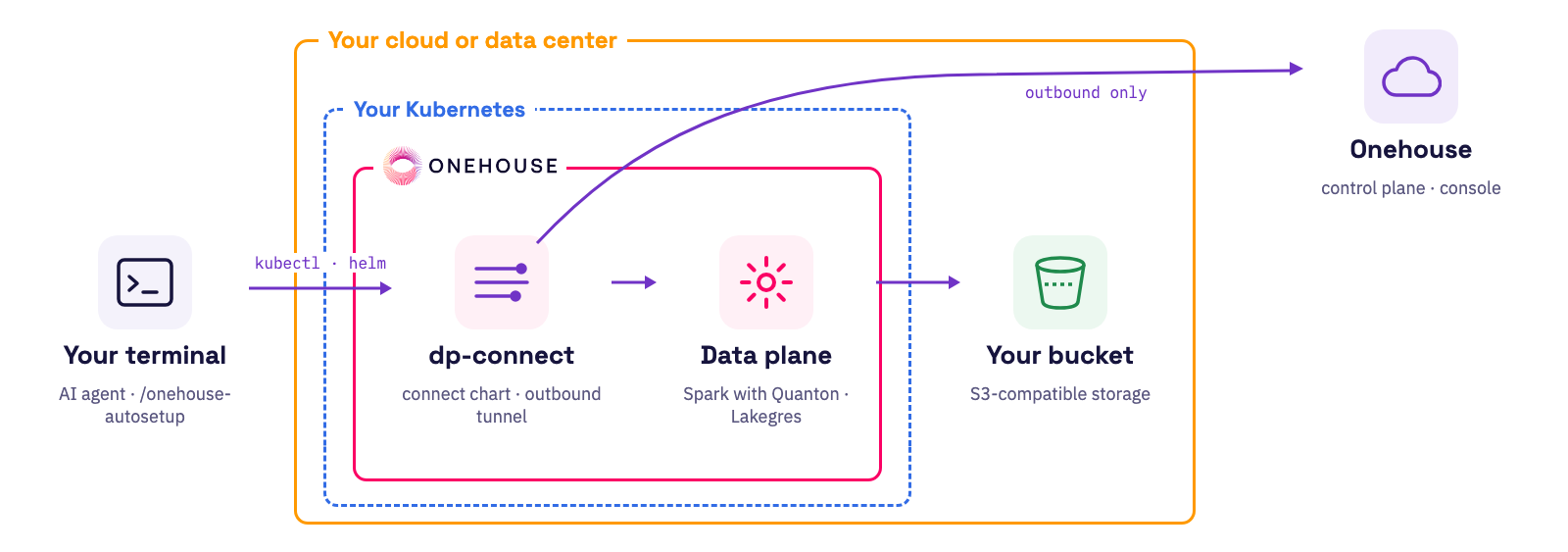
- Your terminal: the AI coding agent runs the
onehouse-autosetupskill. It works through your ownkubectl,helmand Onehouse CLI, and asks before every change. - dp-connect: a Helm chart that opens an outbound tunnel to Onehouse and runs a preflight on storage, node labels and outbound hosts. Nothing in your cluster needs inbound access.
- The data plane: the components Onehouse installs on your nodes through that tunnel. Spark clusters with Quanton, Lakegres clusters and Superset for SQL run here.
- Your bucket: tables live in your S3-compatible object storage.
Onboarding Amazon EKS with the onehouse-autosetup skill
We connect an EKS cluster with four m6a.xlarge nodes to a Generic Kubernetes project in Onehouse. The skill follows an eight-step plan, and the same flow runs on any conformant Kubernetes.
Before you start
In the Onehouse console, Project Settings → Data Plane is empty: no Kubernetes cluster is linked yet. Under Project Settings → General, Node types is empty too; it fills in once the data plane discovers the nodes in your cluster. The setup needs your project ID. Open the profile menu at the bottom left, where the Identifiers section lists it with a copy button; the account ID and request ID shown there go into the CLI profile later.
What you need
The skill checks each of these and, if one is missing, stops and names it:
| Requirement | Details |
|---|---|
| Onehouse project | a Generic Kubernetes project, and its project ID (profile menu, under Identifiers) |
| Kubernetes cluster | you are cluster-admin, and the cluster has exactly one default StorageClass |
| Nodes | at least four, covering the essential, worker and repair roles (for example 4 vCPU / 16 GiB each) |
| Object storage | an S3-compatible endpoint over HTTPS, plus an access key that can put, read, list and delete |
| On your machine | kubectl, helm 3.8 or later, Python 3, and an AI coding agent that supports skills |
Install the skill
In a new, empty folder, install the skill for your agent:
npx skills add onehouseinc/agent-skills --skill onehouse-autosetupFire up your favorite AI coding agent, like Claude Code or Codex, and install the skill for this project only. The skill is copied into the folder, next to its helper scripts:
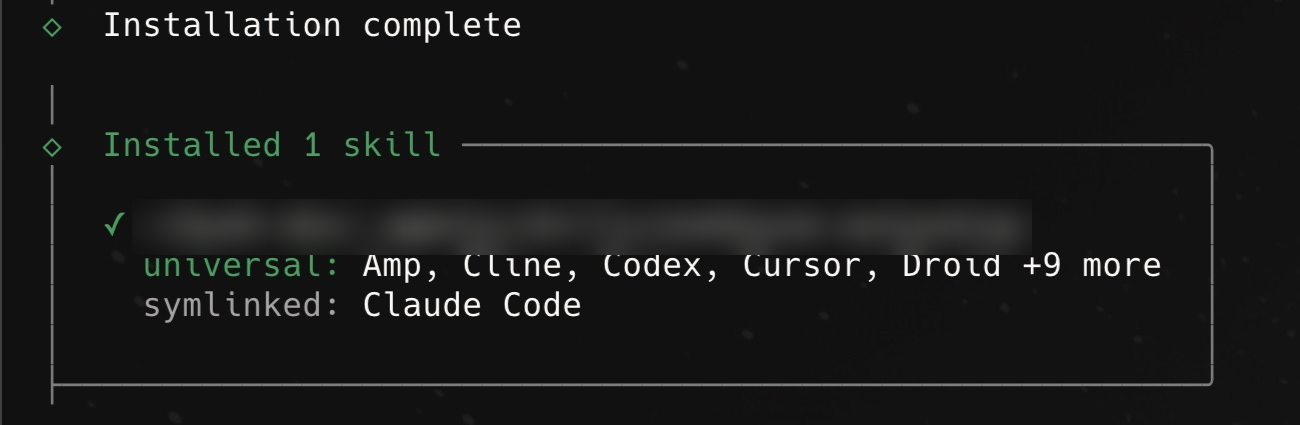
Then start your agent in the same folder and type:
/onehouse-autosetupThe agent loads the skill’s instructions and helper scripts and opens with a welcome. The welcome lists what you need (the table above) and tells you the storage secret goes into a browser form, never into the chat. Paste your project ID, and the skill writes an eight-step plan to a file, covering the CLI and Kubernetes access, storage, nodes, dp-connect and the data plane. A second terminal pane can show that file as a live checklist, ticked as each check passes, so a re-run picks up where it stopped.
Steps 1 and 2: sign in and check the cluster
Step one is the Onehouse CLI and your project. The agent checks your local tools. In our run, kubectl, helm and Python were there and the Onehouse CLI wasn’t, so the agent showed the exact pip install command and ran it only after we allowed it. In a second pane, oh-configure creates a CLI profile with your account ID, project ID, region, request ID and the API endpoint. Then you run oh login yourself, with a leading ! at the agent prompt. Your browser opens the Onehouse sign-in, shows what the CLI may do, and returns to the terminal, so the agent never sees a password. The agent then confirms that the project type is Generic Kubernetes.
Step two is Kubernetes access. You confirm the kubeconfig context, and the agent names it on every command from then on. It checks cluster-admin rights and that all four nodes are Ready. Our cluster had no default StorageClass, so the agent proposed a one-line kubectl patch to make gp2 the default and waited for approval.
Step 3: connect your object storage
Onehouse works with S3-, GCS- or ADLS-compatible object storage; our run uses an S3-compatible endpoint. The CLI opens a form on your machine for the endpoint, region, access key ID and secret:
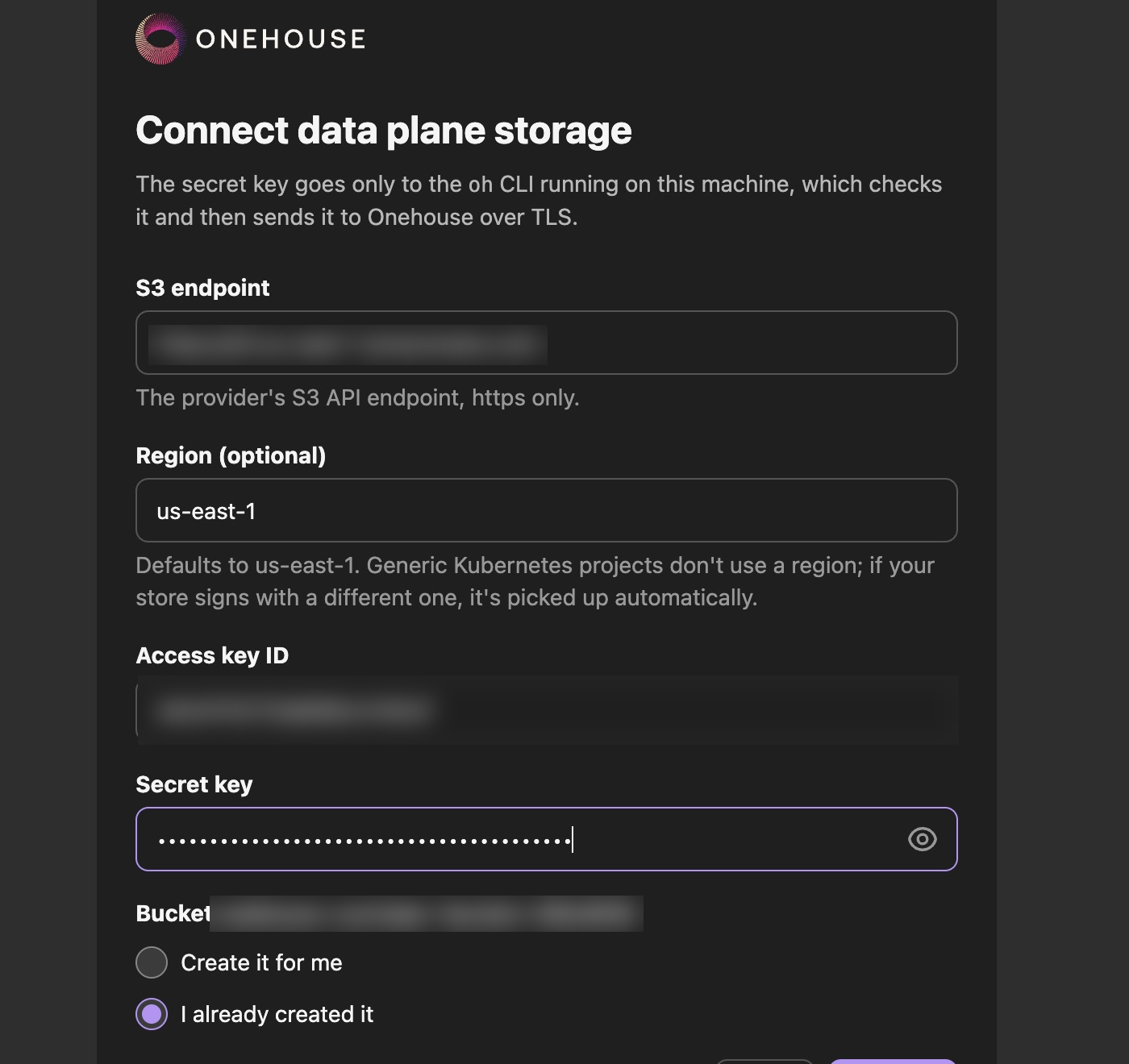
The secret goes from the form to the CLI and on to Onehouse over TLS; it never appears in the chat. In our run, the bucket already existed, and the form ran six checks: the endpoint resolves, its TLS certificate is publicly trusted, the key signs requests, the bucket exists, the key can put, read, list and delete, and the storage is registered with Onehouse. All six passed, and the checklist ticked step three.
Steps 4 to 6: check the nodes and install dp-connect
Step four checks capacity and the Onehouse role and node-type labels on every node; in our run, the nodes were already labeled. Then the agent generates the connect chart’s values file in a private temporary folder, without reading or printing the credentials in it, and shows you the exact Helm command before it runs:
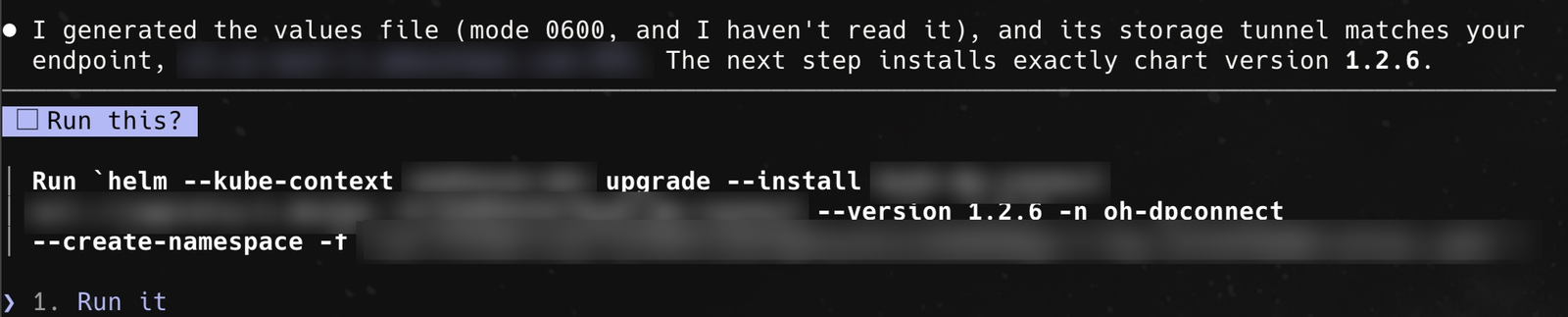
After you allow it, the dp-connect chart opens the outbound tunnel to Onehouse and runs its preflight on storage, node labels and the outbound hosts the data plane needs. In our run, it passed on the first try, the node type m6a.xlarge was reported to Onehouse, and the checklist showed six of eight steps done.
Steps 7 and 8: create the data plane
Step seven creates the data plane. Once you approve it, Onehouse installs its components in your cluster through the tunnel: Apache Spark operators, the scheduler, monitoring, logging and ingress. The agent polls every minute and keeps the checklist current. In our run, the data plane was ready about 23 minutes later.
Step eight lists what was reused (your cluster, your bucket, your node labels) and what was created (the dp-connect chart and the data plane). The plan file stays as a record of the run.
Check it in the console
Back in the console, Project Settings → Data Plane now shows your cluster linked. The data plane is online and takes commands from Onehouse over its outbound tunnel. The page lists the cluster, your bucket, the connect chart version and the outbound hosts the data plane needs:
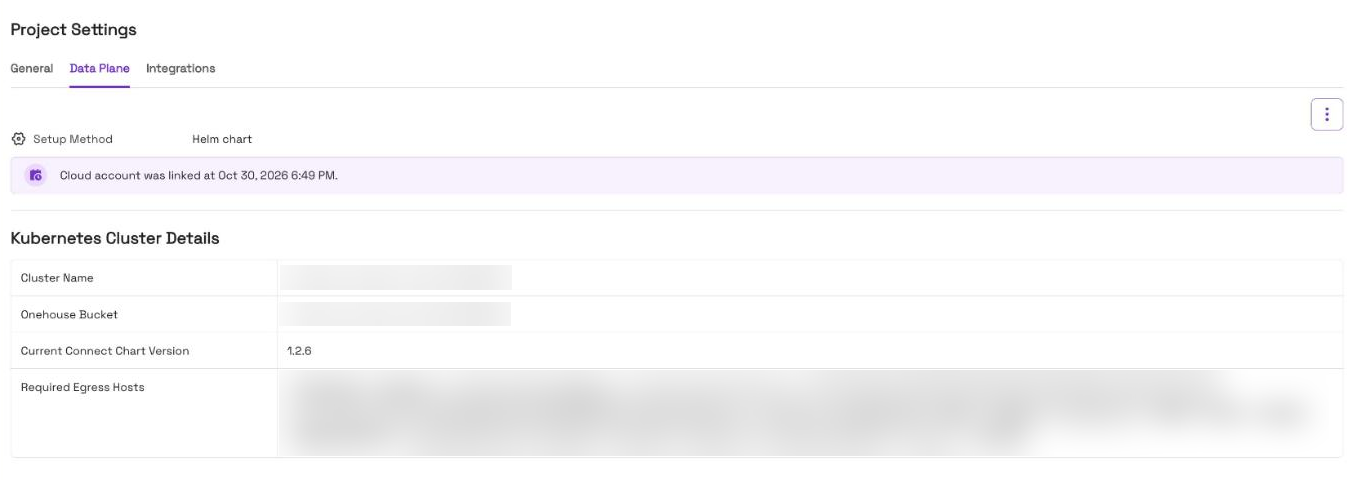
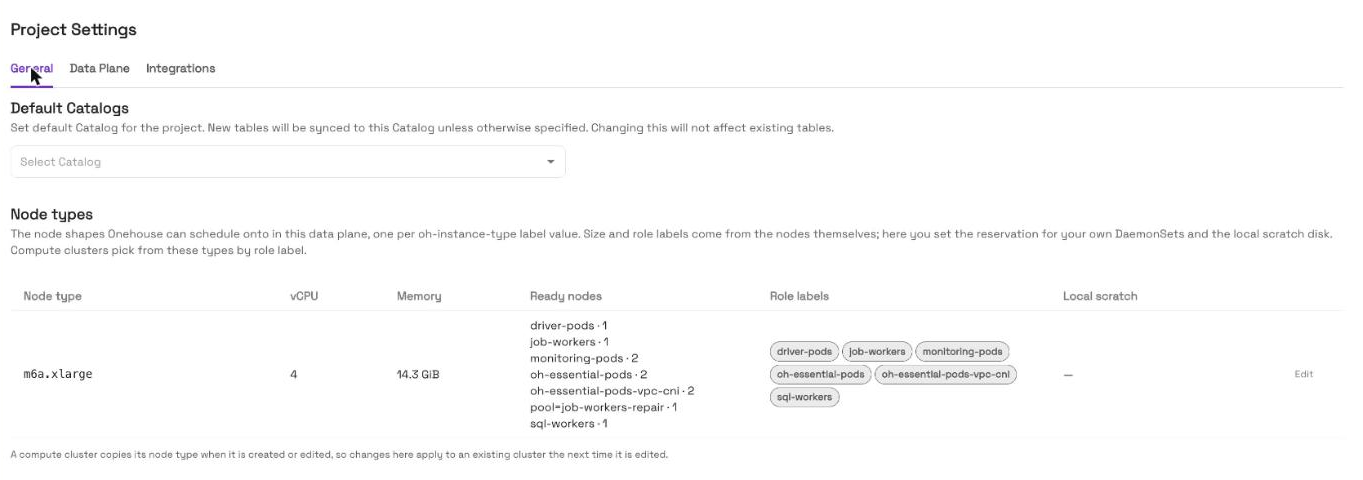
Under Project Settings → General, Node types now lists your machines as Onehouse sees them, read from the cluster itself. In our run, the four m6a.xlarge instances in our cloud account showed up as one node type, m6a.xlarge with 4 vCPU and 14.3 GiB, with the roles from their labels:
Putting the data plane to work
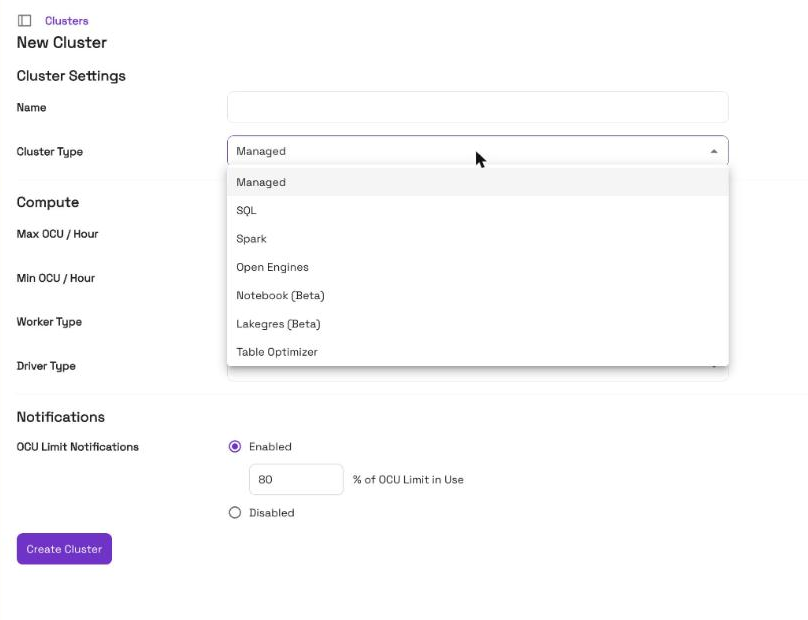
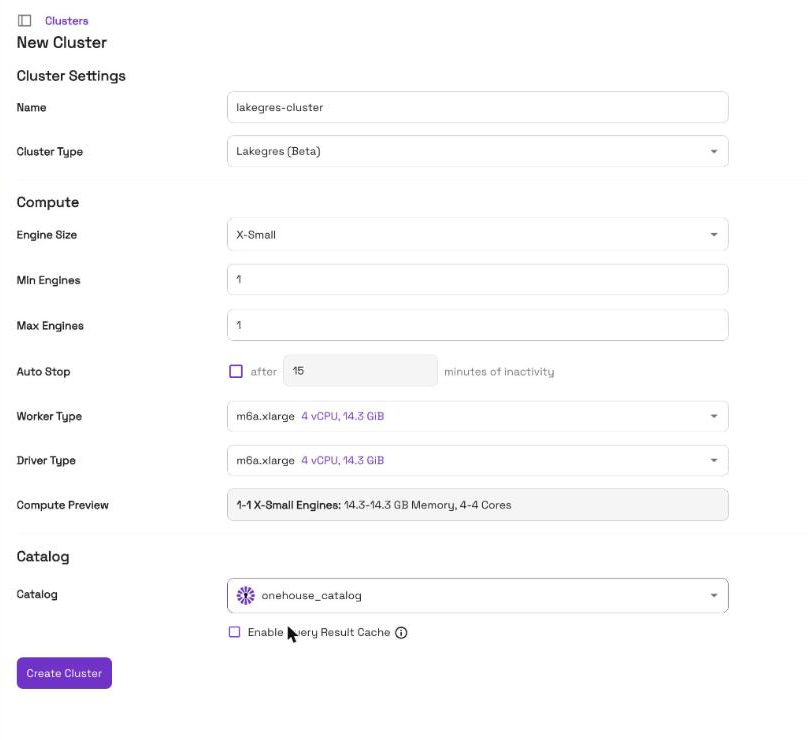
With the data plane linked, everything else is driven from the Onehouse console and runs on your own nodes. In Clusters → New Cluster, the type list has Spark for jobs, SQL for queries, Open Engines, Notebooks, Lakegres for Postgres access and the Table Optimizer. All of them are powered by Quanton, the Onehouse engine and the fastest lakehouse engine on the market. Quanton, Lakegres and Notebooks are in beta today:
Run a Spark job on Quanton
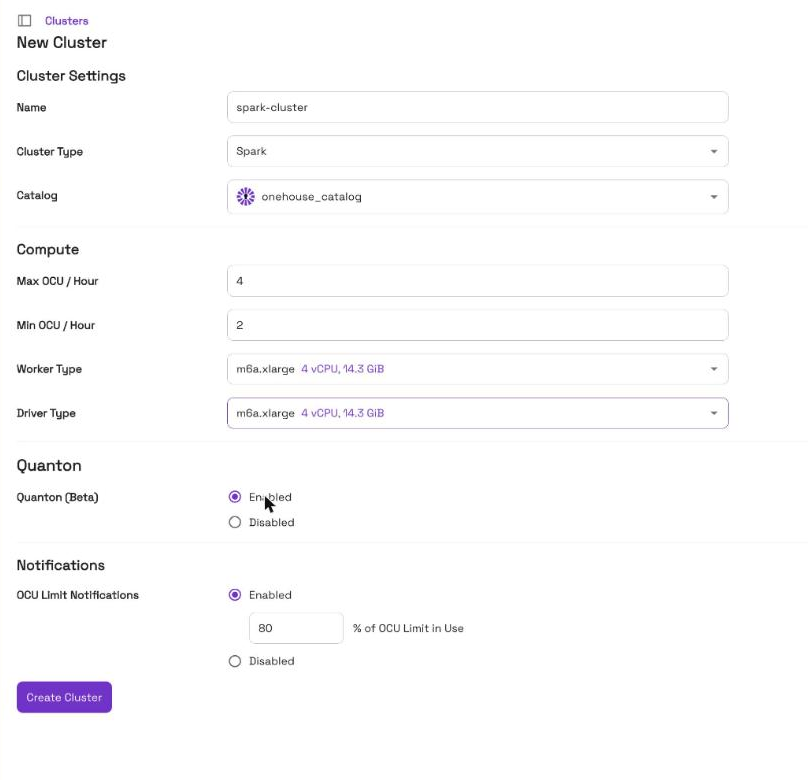
We created a catalog, onehouse_catalog, a lake demolake in our own bucket, and a database sales. Then we created a Spark cluster on that catalog. The worker and driver type lists offer your own node size, here m6a.xlarge, and we turned Quanton on so the cluster runs on the Onehouse engine:
Our PySpark job writes 1,000 example orders as sales.orders, a table in your lake that is readable as Iceberg, then reads them back and logs a total per region. The driver log shows four regions with 250 orders each:
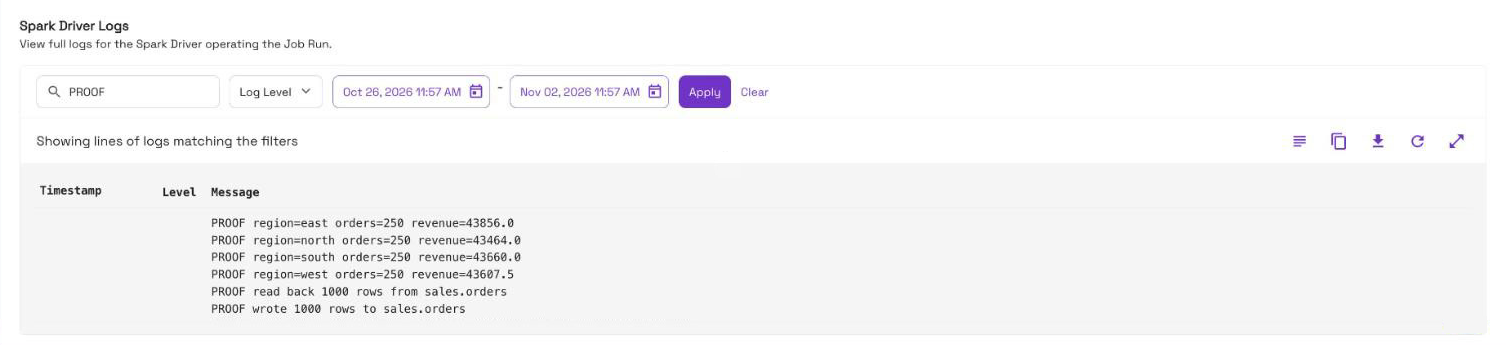
PROOF region=east orders=250 revenue=43856.0
PROOF region=north orders=250 revenue=43464.0
PROOF region=south orders=250 revenue=43660.0
PROOF region=west orders=250 revenue=43607.5
PROOF read back 1000 rows from sales.orders
PROOF wrote 1000 rows to sales.orders
Read the same table as Iceberg
Onehouse’s table format interoperability keeps Iceberg metadata next to the same data files in your bucket, so the table reads as Iceberg without a copy of the data:
To see it, list the table’s data files and its Iceberg metadata (replace your-bucket with your bucket):
aws s3 ls s3://your-bucket/lakes/demolake/sales/orders/ --recursive | awk '{print $4}' | grep -E '/orders/[^/]+\.parquet$|/orders/metadata/'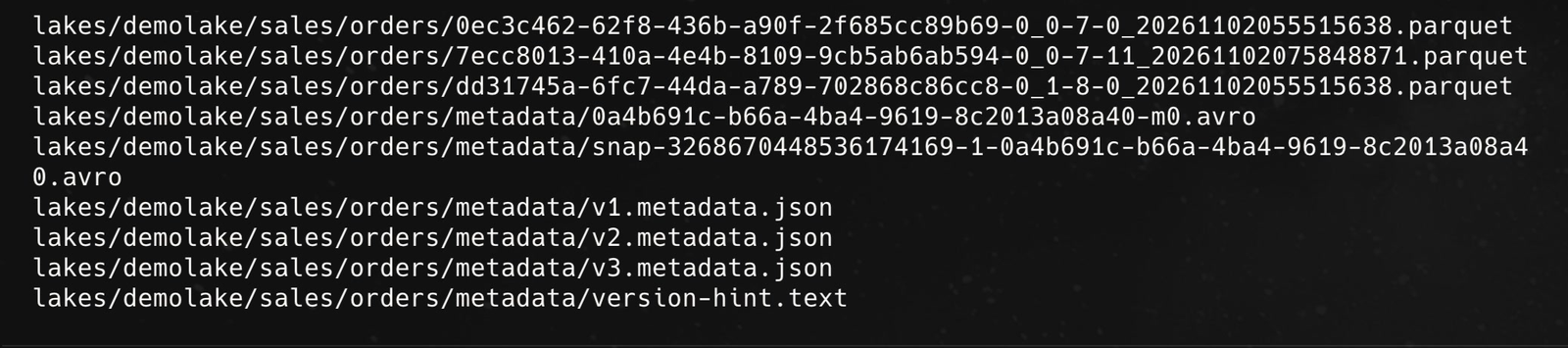
Any Iceberg engine can read the table straight from your bucket, including Onehouse’s own engine, Lakegres.
Query it with Lakegres in Superset
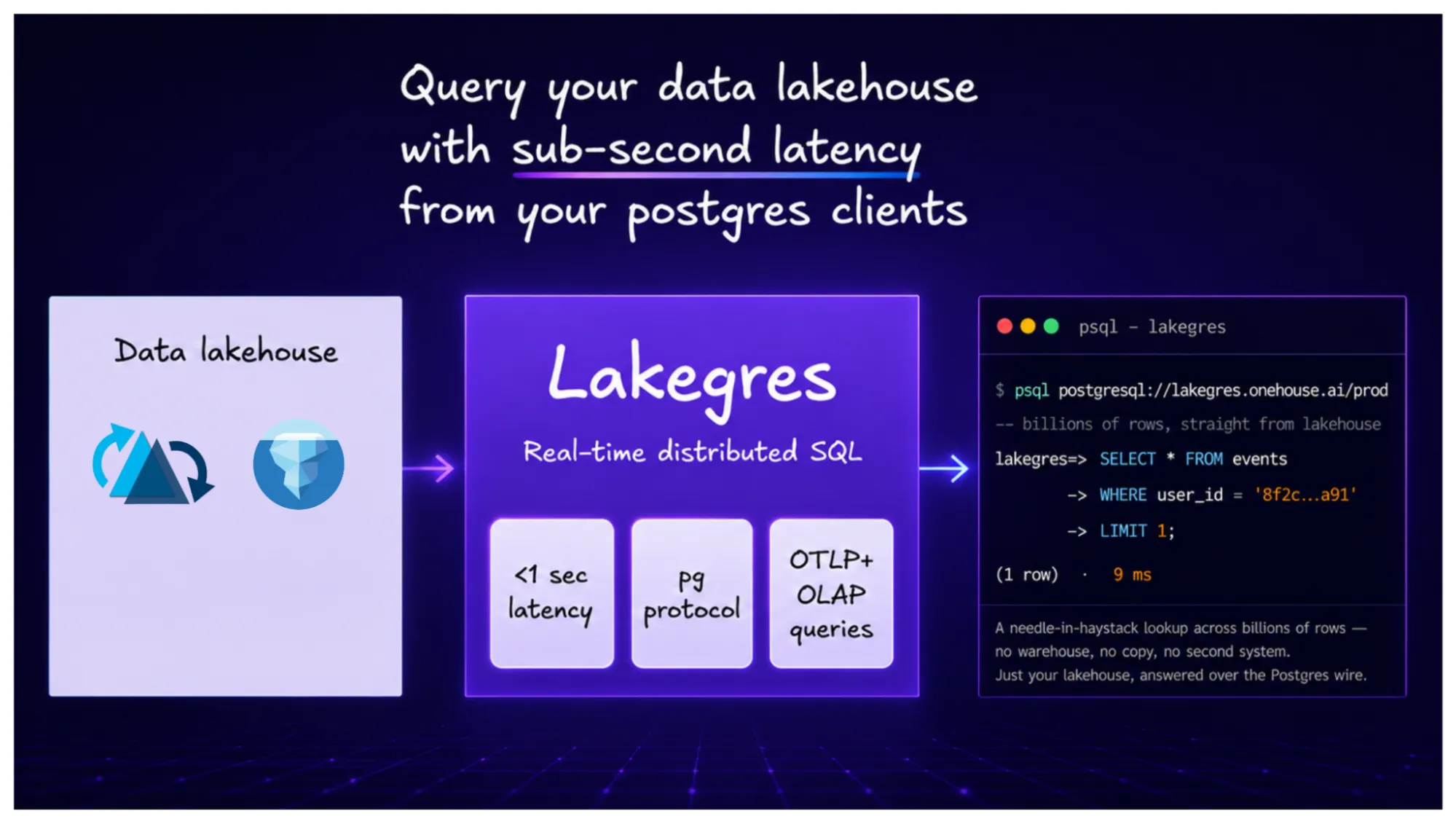
Last, we created a Lakegres cluster on the same catalog and node type. Lakegres puts a Postgres endpoint on your lake, inside your cluster, so Postgres tools can query your tables:
To query it, open SQL in the left nav of the Onehouse console. Superset runs inside your cluster, with lakegres-cluster already attached as its query engine:
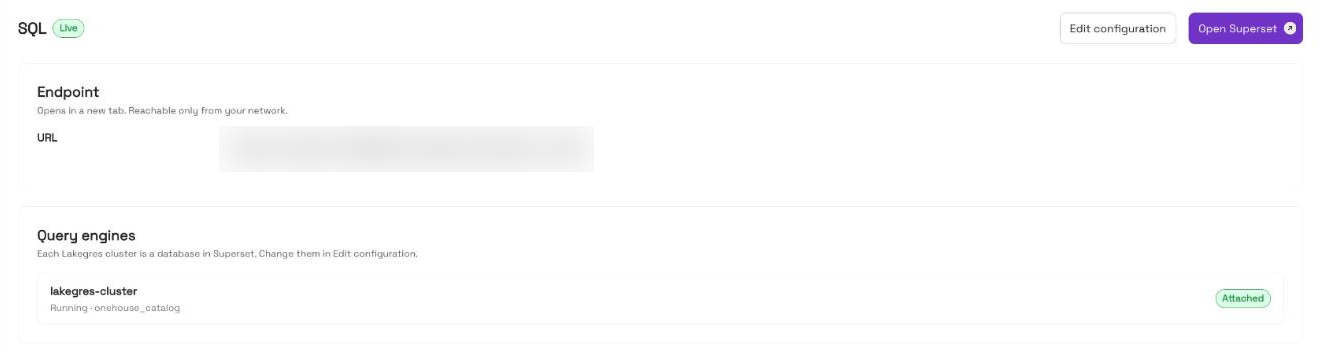
Clicking “Open Superset” opens it in a new tab. Under Settings → Database Connections, Superset already has a connection to the Lakegres cluster, with the lakegres backend; there’s nothing to configure:

Then open SQL → SQL Lab, pick lakegres-cluster as the database and sales as the schema, and the orders table the Spark job wrote is listed. We asked for revenue by region:
SELECT region,
       count(*) AS orders,
       round(sum(amount), 2) AS revenue
FROM sales.orders
GROUP BY region
ORDER BY region;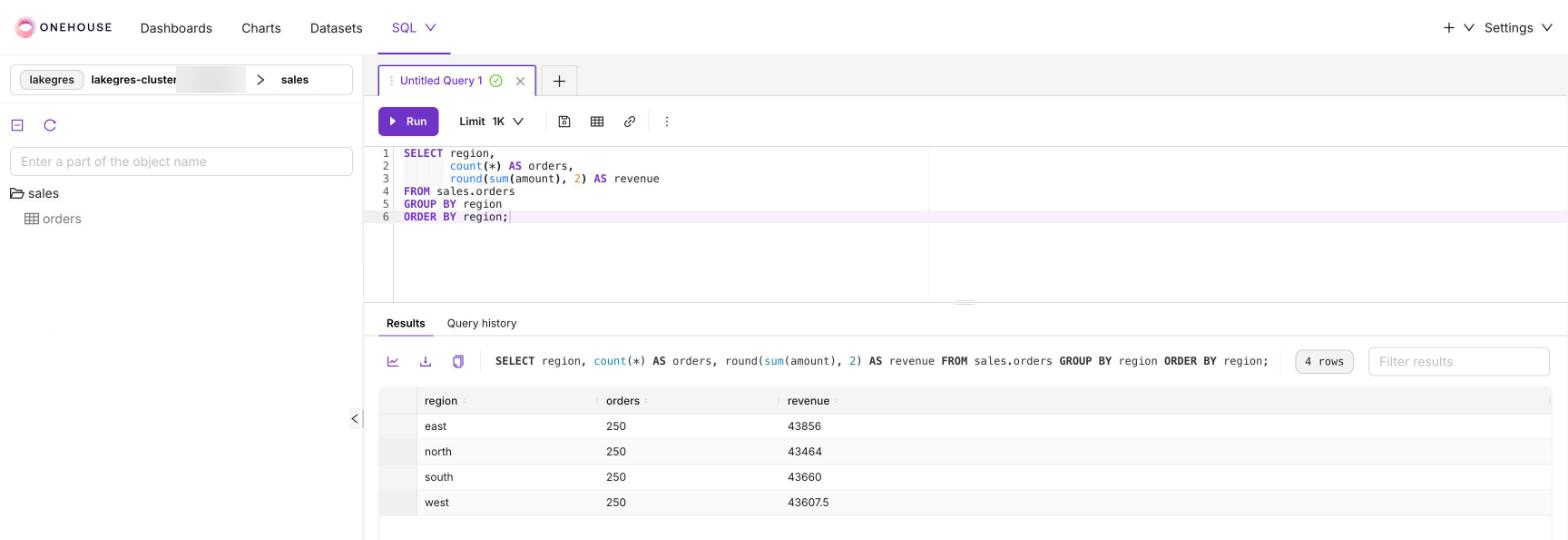
Four rows, 250 orders each: the same totals the Spark job logged, now from Superset through Lakegres.
Frequently asked questions
Which Kubernetes can I run Onehouse on?
Any conformant Kubernetes, in any cloud or in your own data center, where you’re cluster-admin and that has one default StorageClass. This walkthrough uses Amazon EKS.
What runs in my cluster, and what runs in Onehouse?
The data plane runs in your cluster: dp-connect, the Spark operators, the scheduler, monitoring, logging and ingress, plus the Spark, SQL and Lakegres clusters you create and Superset. Onehouse runs the control plane and sends commands to the data plane over its outbound tunnel. Your tables stay in your bucket.
Does my cluster need inbound access?
No. dp-connect connects outbound to Onehouse; nothing in your cluster needs to accept inbound connections from Onehouse.
How many nodes do I need, and how does Onehouse use them?
At least four, covering the essential, worker and repair roles. Onehouse reads your node types and roles from the node labels, and the worker and driver type lists for new clusters offer those node sizes.
Which object storage can I use?
S3-, GCS- or ADLS-compatible object storage. This walkthrough uses an S3-compatible endpoint over HTTPS.
Which AI agents can run the skill?
Any AI coding agent that supports skills, such as Claude Code or Codex.
Does the agent ever see my secrets?
No. You sign in to Onehouse in your browser, and you type the storage secret into a local form that hands it straight to the Onehouse CLI. The values file with the credentials is written to a private temporary folder and never read or printed.
Can the agent change my cluster without asking?
No. Every command that changes something, such as pip install, kubectl patch or helm upgrade --install, is shown first and runs only after you allow it.
What if a step fails halfway?
Run /onehouse-autosetup again. The plan file records every check, so the agent skips what’s already done and picks up where it stopped.
Conclusion
Autosetup connects any Kubernetes cluster, in any cloud, to Onehouse through one conversation with an AI agent, and you approve every change. In our run, it took an Amazon EKS cluster from an empty folder to a linked data plane, with the storage secret kept out of the chat. The data plane was ready about 23 minutes after we approved it, and the first table, written by Spark on Quanton and readable as Iceberg, returned the same totals through Lakegres in Superset.
- Introducing the Quanton Kubernetes Operator for Apache Spark™
- Announcing Onehouse Lakegres™: database speeds finally on the lakehouse
- Query your lakehouse from Python like it’s Postgres, with Onehouse Lakegres
To try it on your own cluster, start at onehouse.ai, or get in touch with our team at gtm@onehouse.ai.