Talk with our engineers by joining the new Onehouse community Slack!
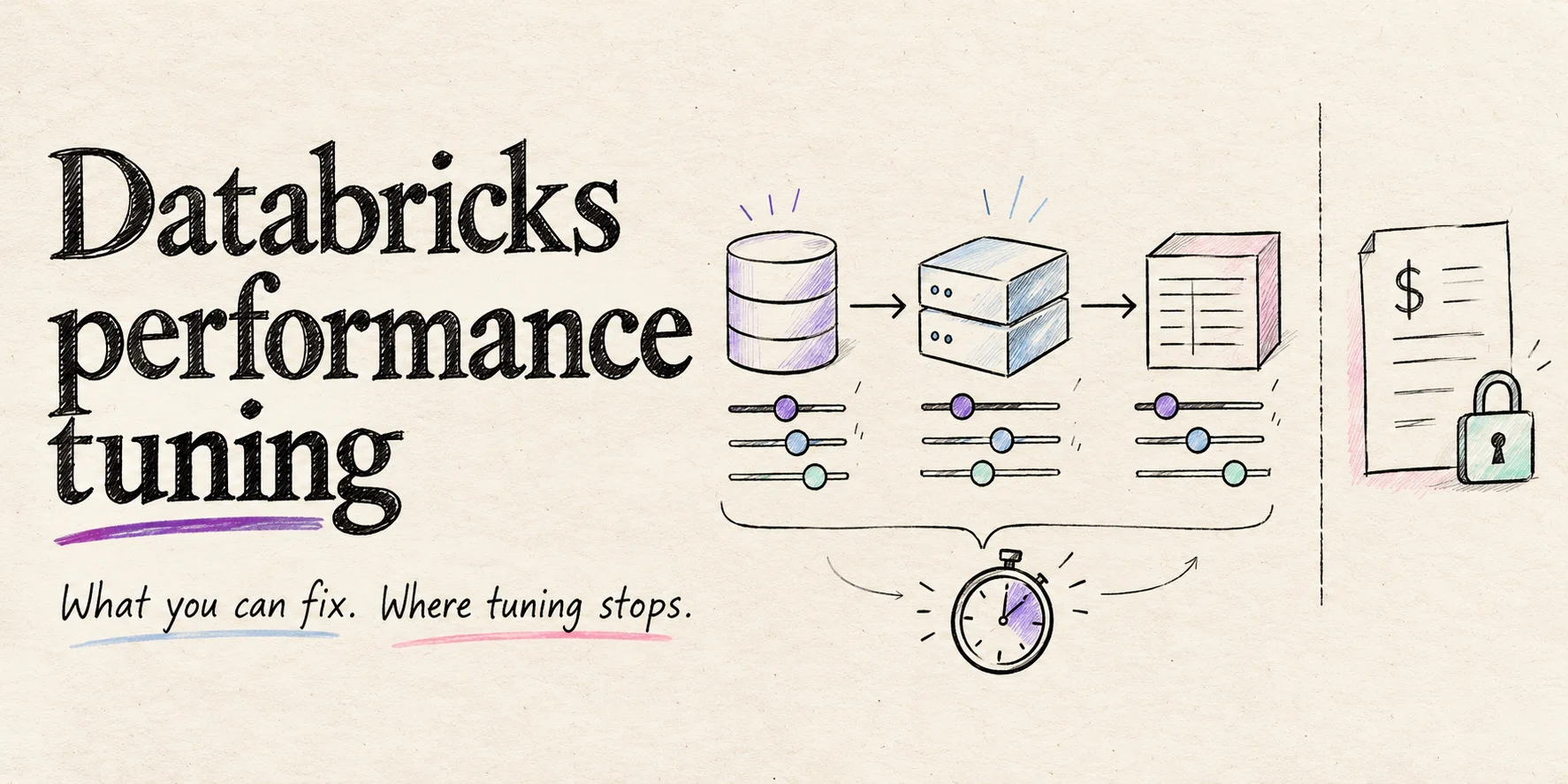
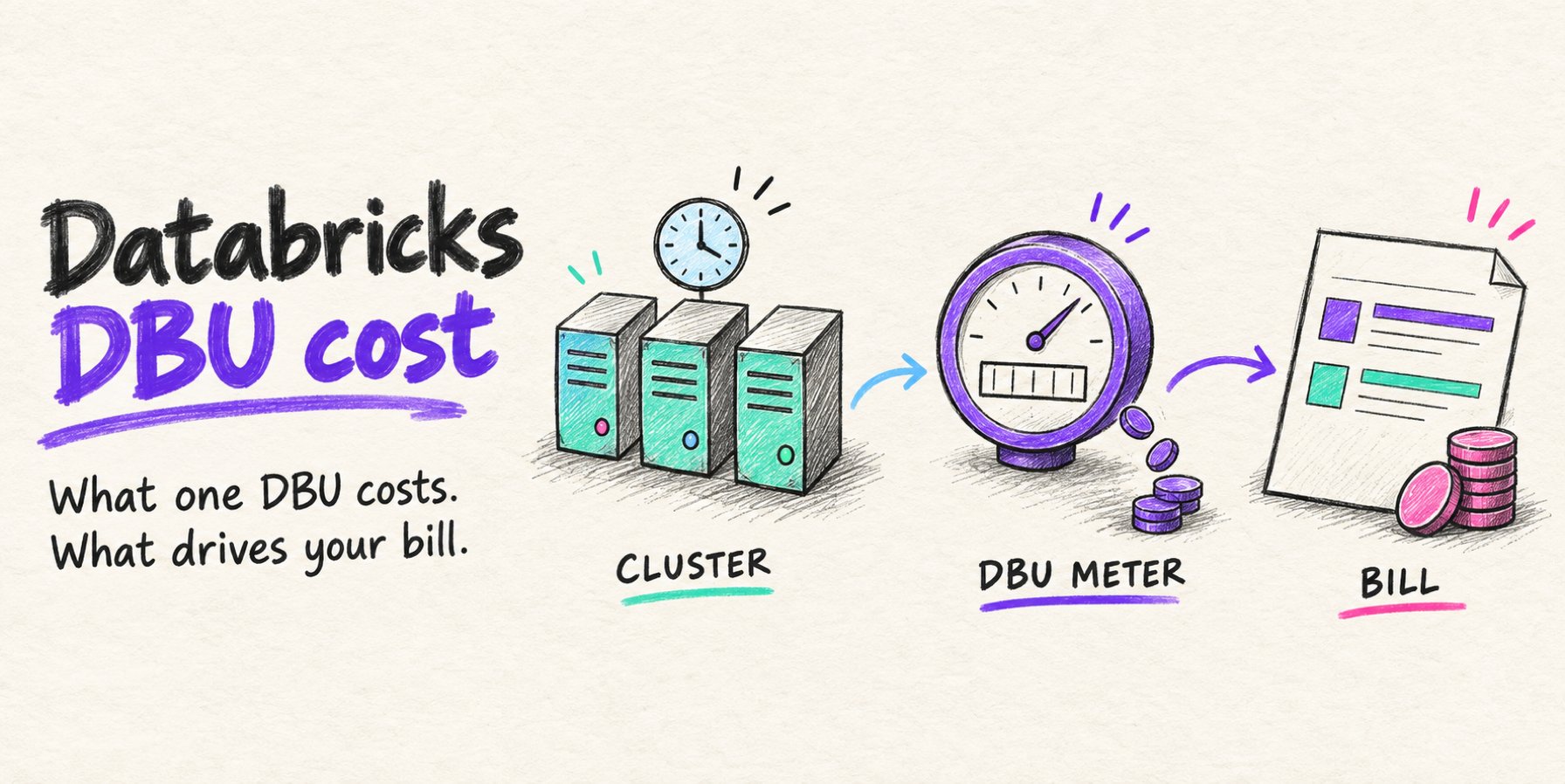
Databricks performance tuning has a short list of levers that move most jobs: data layout, shuffle and join strategy, skew and spill, caching, and cluster configuration. Work on them in that order to reduce runtime and billed compute. DBU spend is the price per DBU for your compute SKU, times the cluster’s DBU consumption per hour, times its billed hours. Shorter jobs save money when they reduce billed usage; a faster query on a shared cluster that stays running does not automatically lower the bill. Classic compute also has a separate cloud infrastructure charge.
There is also a short list of things tuning can’t reach: the per-DBU rate for each compute type, the premium for Photon, the engine itself, and the configuration surface serverless takes away. This guide covers the levers you control first, with the configs and commands to apply, then draws a precise line around what the platform sets, so you know when a slow job is a tuning problem and when it has become a platform and pricing problem.
Runtime defaults below are checked against Databricks Runtime 16.4 LTS and later unless a version is named. Apache Spark™ settings are the open-source keys; Databricks-specific keys carry the spark.databricks prefix.
You control
- File layout and clustering keys
- Queries and join strategy
- Shuffle settings on classic compute
- Classic cluster size, type and autoscaling
- Photon selection on classic compute
- Caching within supported APIs
The platform sets
- Published DBU prices by SKU
- Photon DBU consumption rates
- Built-in execution engines
- Serverless configuration allowlist
- Runtime releases and support windows
Databricks performance tuning step one: Find the bottleneck
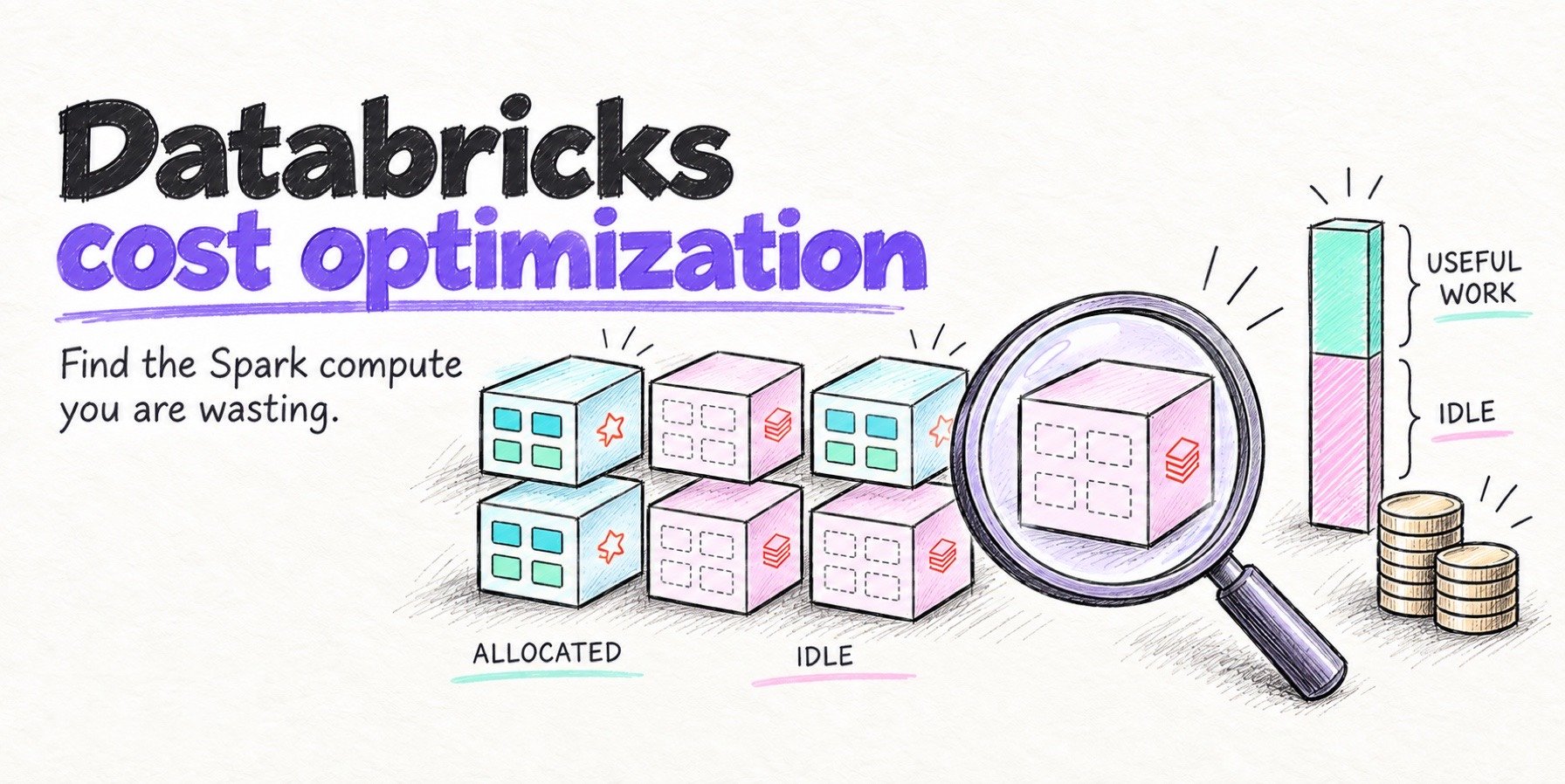
Start with the jobs that cost the most, since a 30% gain on a job that runs for pennies changes nothing. Three sources tell you where the time and money go: system tables for spend per job, the Spark UI for jobs on classic compute, and the query profile for SQL warehouses and serverless.
Rank jobs by spend with system tables. system.billing.usage records every DBU, with the job it belonged to for job compute and serverless jobs. Join it to system.billing.list_prices for list-price DBU cost. This query follows the official Databricks job-cost examples, scoped to USD and DBU usage:
SELECT
  u.workspace_id,
  u.usage_metadata.job_id AS job_id,
  u.sku_name,
  SUM(u.usage_quantity)                      AS dbus,
  SUM(u.usage_quantity * lp.pricing.effective_list.default) AS list_cost_usd
FROM system.billing.usage u
JOIN system.billing.list_prices lp
  ON u.cloud = lp.cloud
  AND u.sku_name = lp.sku_name
  AND u.usage_unit = lp.usage_unit
  AND u.usage_start_time >= lp.price_start_time
  AND (lp.price_end_time IS NULL OR u.usage_end_time <= lp.price_end_time)
WHERE u.usage_date >= current_date() - INTERVAL 30 DAYS
  AND u.usage_unit = 'DBU'
  AND lp.currency_code = 'USD'
  AND u.billing_origin_product = 'JOBS'
  AND u.usage_metadata.job_id IS NOT NULL
GROUP BY ALL
ORDER BY list_cost_usd DESC
LIMIT 20;
These are list-price DBU costs, before contract discounts and separately billed cloud infrastructure. Sum correction and retraction records along with original usage, as the query does. The usage schema explains the attribution fields; jobs on all-purpose compute are not attributed through job_id. To investigate that spend, make a separate rollup by workspace_id and usage_metadata.cluster_id without the job filters above.
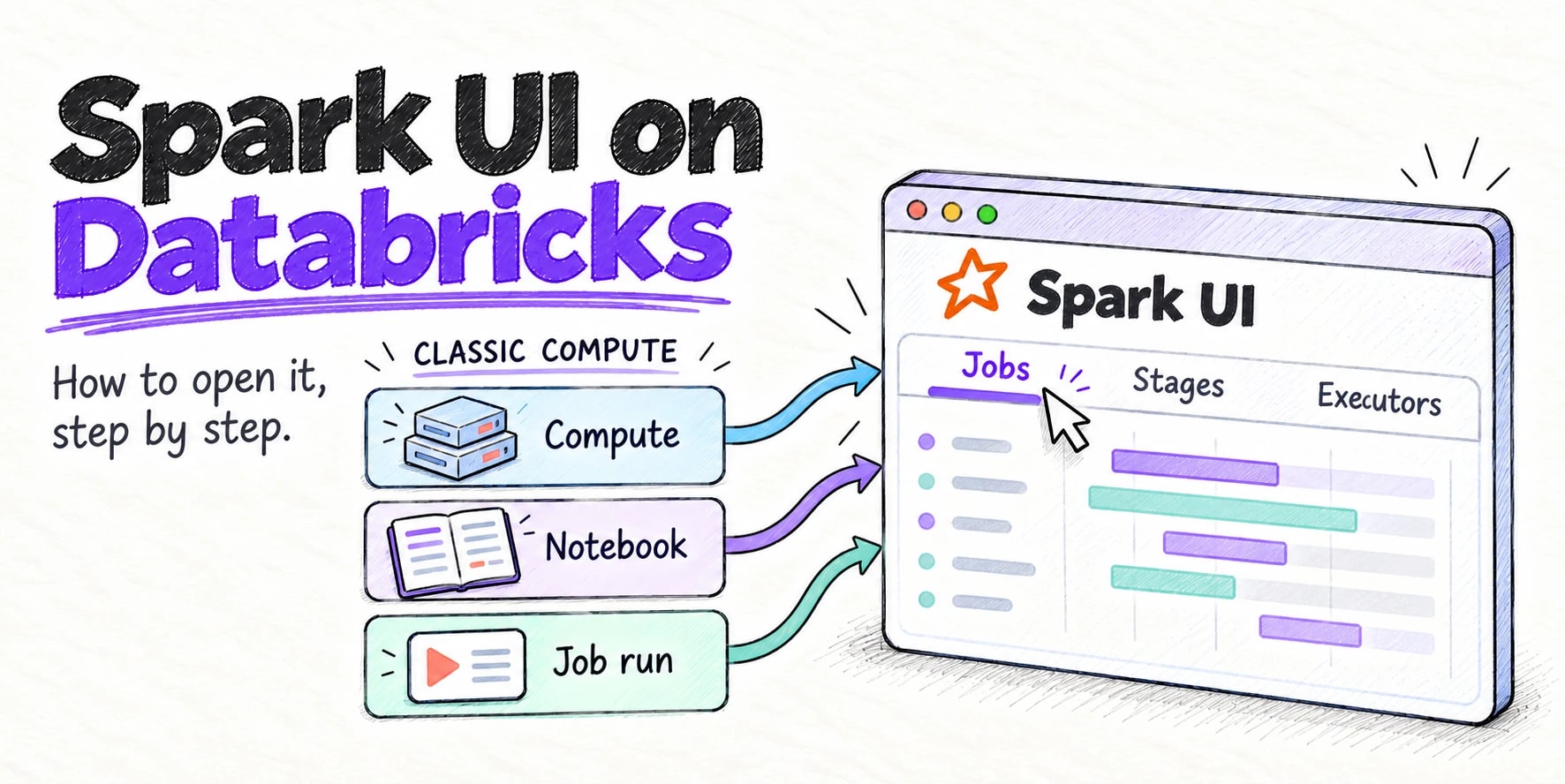
Read the Spark UI in order. For a slow job on classic compute, open the Spark UI and go through three tabs:
-
Stages: sort by duration. In the slow stage, compare maximum task duration with the 75th percentile in Summary Metrics. If the maximum is at least 50% higher, investigate skew and compare shuffle-read sizes across tasks. Check the Spill (memory) and Spill (disk) columns. They report the in-memory size of spilled data and the bytes written to disk, respectively. Investigate substantial spill alongside slow tasks; non-zero spill alone does not establish a sizing problem.
-
SQL/DataFrame: open the query and count Exchange nodes. Each one is a shuffle. Look for SortMergeJoin where one side is small, and for a BroadcastExchange that is suspiciously large. On Photon clusters, orange operators ran in Photon and blue ones fell back to Spark.
-
Executors: compare Task Time to uptime per executor, and GC Time to Task Time. Executors with near-zero task time are paid idle. As a rule of thumb, investigate GC when it exceeds about 10% of task time; inspect GC logs, object allocation and cached data before changing heap size.
Use the query profile on SQL warehouses and serverless. There is no Spark UI there. The query profile shows time per operator, rows and bytes at each step, the share of task time spent in Photon, and whether files were pruned or scanned in full.
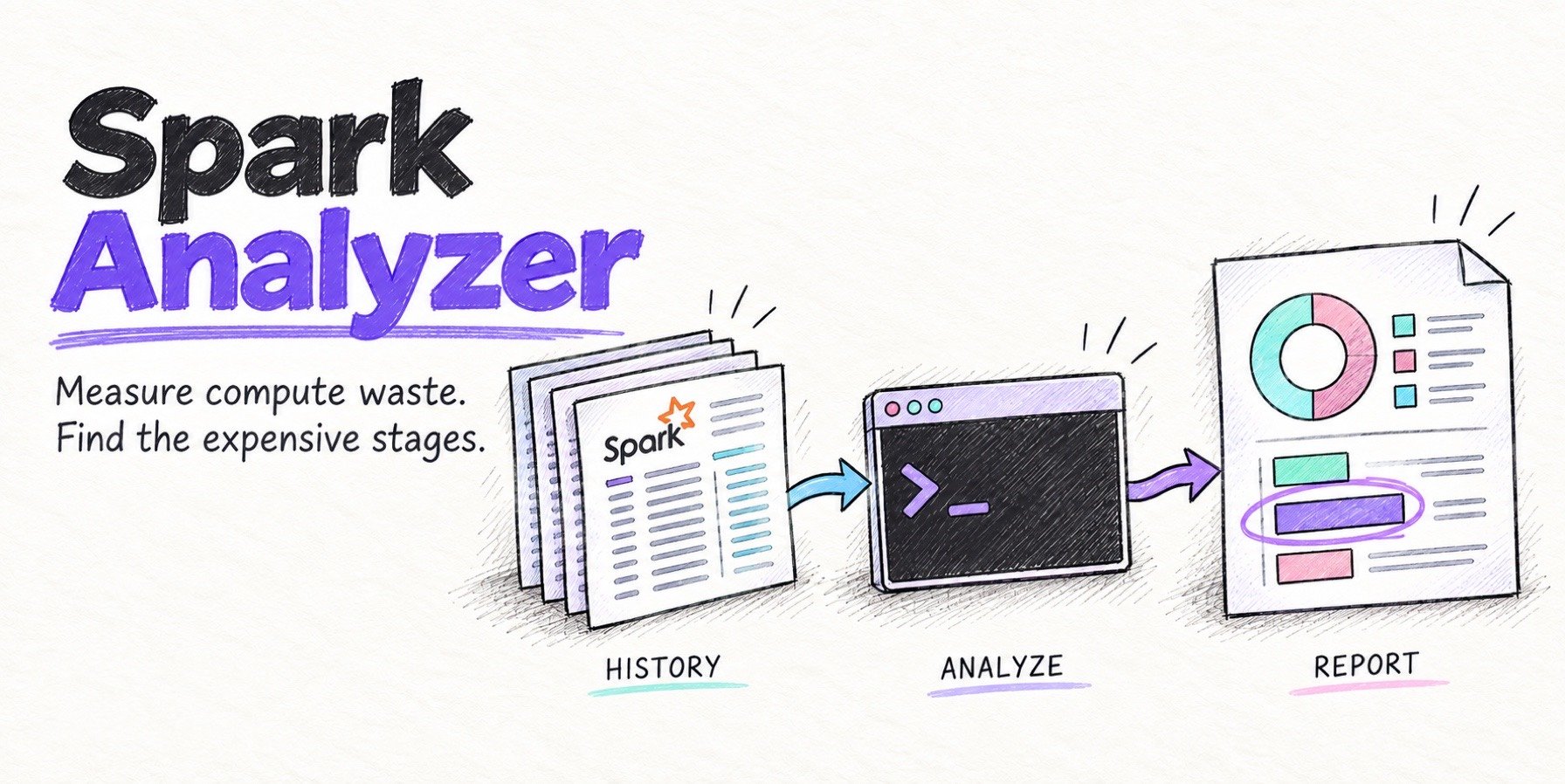
If you want this automated across many jobs, Spark Analyzer is a free, read-only CLI that reads the Spark History Server and reports compute waste per application and stage. It supports Databricks and keeps data local with --save-local.
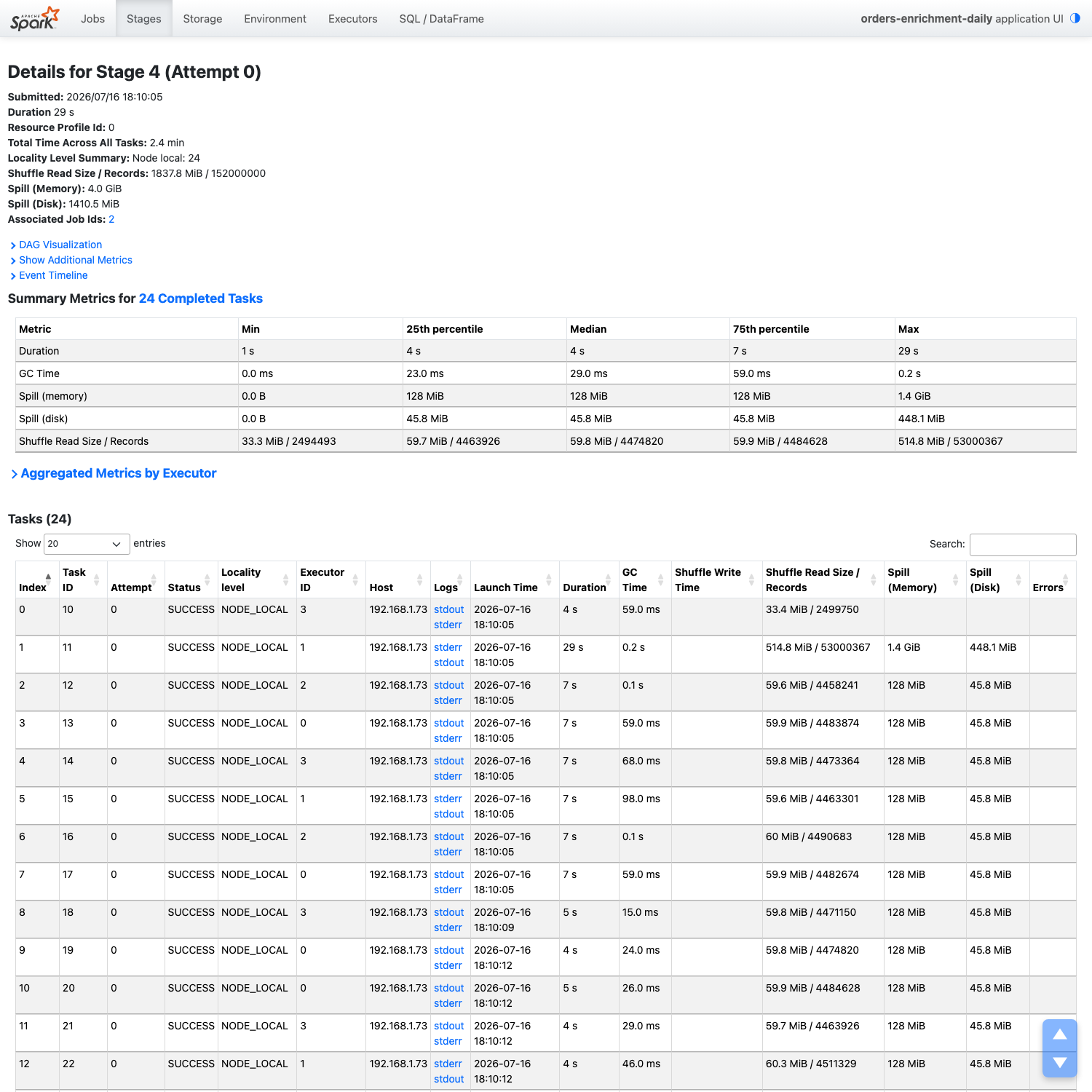
Read these three signals together
- Duration: The maximum is 29 seconds; the median is 4 seconds.
- Shuffle read: The maximum is 514.8 MiB; the median is 59.8 MiB. Find the large task in the task table.
- Disk spill: That task spills 448.1 MiB. Compare its input and runtime with its peers before changing memory or partitions.
Data layout
File layout decides how much data a scan returns, and every later lever works on that amount, so a file-size, clustering or statistics problem makes each downstream join and shuffle larger than it needs to be.
Small files multiply task scheduling and metadata overhead, and very large files make data skipping coarse. For Unity Catalog managed tables, start with Databricks’ automatic file-size tuning and predictive optimization. The manual file-size recommendations apply to tables outside that managed path.
For external Delta tables, optimized writes and auto compaction reduce small files as data arrives. They do not fully replace OPTIMIZE. On supported runtimes, both are always enabled for MERGE, UPDATE and DELETE. Use explicit target sizes only after measuring the workload; for rewrite-heavy tables, delta.tuneFileSizesForRewrites lets Databricks adjust file sizes for that pattern.
-- External Delta table maintenance
OPTIMIZE sales_fact;
ALTER TABLE sales_fact SET TBLPROPERTIES (
  'delta.autoOptimize.optimizeWrite' = 'true',
  'delta.autoOptimize.autoCompact'   = 'auto'
);
Liquid clustering, partitioning, or Z-order. Databricks now recommends liquid clustering for all new tables, in place of both Hive-style partitioning and ZORDER. It is GA for Delta on Databricks Runtime 15.4 LTS and later, takes up to four clustering keys, is incremental (so OPTIMIZE rewrites only what changed), and is not compatible with partitioning or Z-order on the same table.
-- new table
CREATE TABLE events (event_date DATE, customer_id BIGINT, payload STRING)
CLUSTER BY (event_date, customer_id);
-- existing unpartitioned table
ALTER TABLE events CLUSTER BY (event_date, customer_id);
OPTIMIZE events FULL;   -- first time, or after changing keys (DBR 16.4 LTS+)
-- let Databricks choose keys (Unity Catalog managed tables, predictive optimization on)
ALTER TABLE events CLUSTER BY AUTO;
The rules of thumb for the older approaches still apply where you have them: don’t partition tables under about 1 TB, partition only on low-cardinality columns where each partition holds at least 1 GB, and never Z-order on more than four columns. Clustering keys must have statistics. External Delta tables collect file-skipping statistics on the first 32 columns by default. Unity Catalog managed tables with predictive optimization can select statistics columns beyond that limit. For an external table, explicitly select the columns your filters use; changing the property does not backfill statistics for existing files. The data-skipping documentation provides the supported commands:
-- Explicit file-skipping columns: DBR 13.3 LTS+
ALTER TABLE events SET TBLPROPERTIES (
  'delta.dataSkippingStatsColumns' = 'event_date,customer_id'
);
-- Recompute for existing data: DBR 14.3 LTS+
ANALYZE TABLE events COMPUTE DELTA STATISTICS;
Predictive optimization. On Unity Catalog managed tables, Databricks can run OPTIMIZE, VACUUM and ANALYZE for you based on usage. If it is on, remove overlapping scheduled maintenance for those tables to avoid unnecessary work.
Column pruning and predicate pushdown are automatic for Apache Parquet™ and Delta. Data skipping on a filter needs min/max statistics on the filter column, and it skips far more files when the table is clustered or partitioned on that column. Dynamic file pruning is a join-time optimization: it uses the small side of a join to skip files on the large Delta table, works best when that table is clustered on the join column, and on MERGE, UPDATE and DELETE it needs Photon. A query profile that shows every file scanned on a filtered query means the layout and the predicate don’t line up.
Shuffle and joins
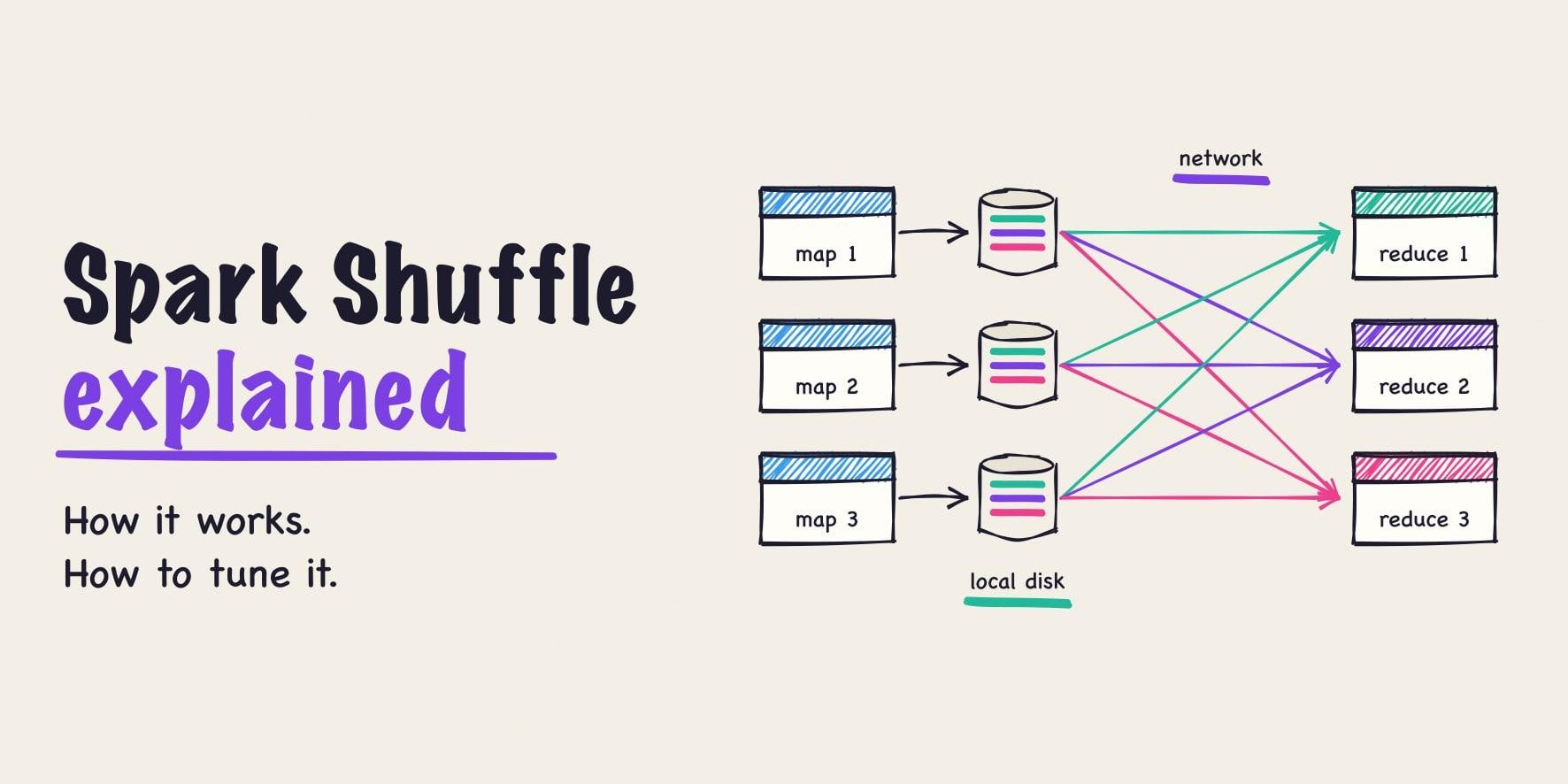
Each shuffle moves data across the network and through local disk, so the levers in this section either remove a shuffle (broadcast) or make the ones that remain cheaper (partition sizing, join algorithm, fresh statistics).
Broadcast the small side. Spark’s spark.sql.autoBroadcastJoinThreshold defaults to 10 MB. On Databricks, adaptive query execution adds a runtime threshold, spark.databricks.adaptive.autoBroadcastJoinThreshold, at 30 MB by default, which converts a planned sort-merge join to broadcast once real sizes are known. Databricks’ guide puts the safe ceiling at about 200 MB on drivers with 32 GB or more, and says never to broadcast a table over 1 GB. An explicit hint skips the planner’s guess:
SELECT /*+ BROADCAST(d) */ f.*, d.region
FROM sales_fact f JOIN dim_store d ON f.store_id = d.store_id;
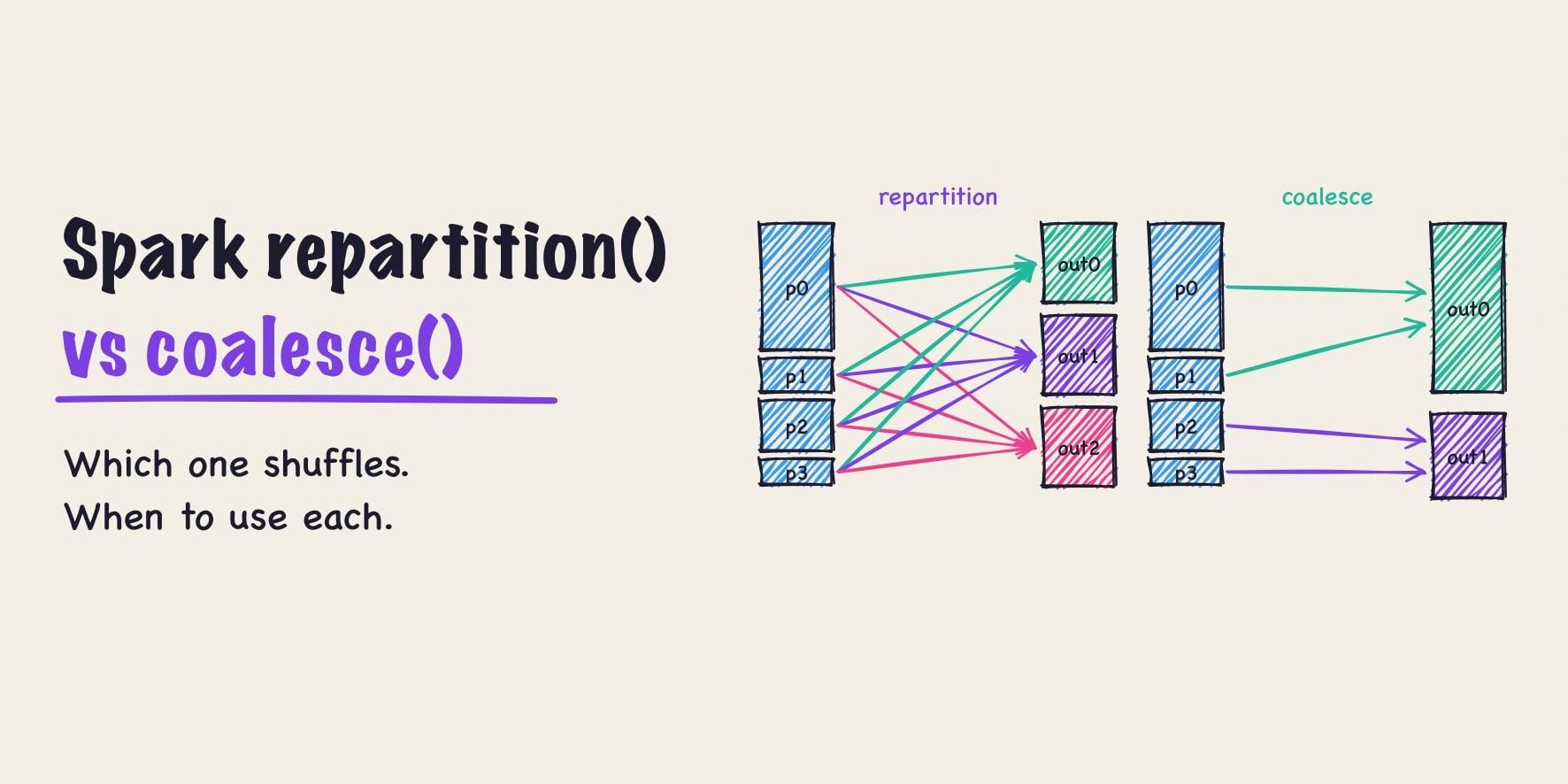
Size shuffle partitions. spark.sql.shuffle.partitions defaults to 200. On Databricks, setting it to auto enables auto-optimized shuffle, which chooses the initial partition count from the query plan and input data size. During execution, AQE uses runtime statistics to coalesce small post-shuffle partitions and handle skew. If you set it manually, aim for 128 MB to 200 MB of shuffle data per task, which you can read off the Spark UI; spark.sql.adaptive.coalescePartitions.enabled (on by default) merges small partitions using spark.sql.adaptive.advisoryPartitionSizeInBytes as a target, 64 MB by default.
Shuffle hash versus sort-merge. Spark prefers sort-merge join (spark.sql.join.preferSortMergeJoin = true). For large equi-joins on unsorted inputs, shuffle hash join skips the sort and is usually faster, at the cost of memory proportional to the build side. Databricks’ own guide suggests flipping the flag to false for shuffle-heavy jobs that miss SLAs after the first run, and a /*+ SHUFFLE_HASH(t) */ hint does it for one join. Photon makes the same choice on its own.
Keep statistics fresh. The cost-based optimizer is on by default and useless without statistics. For tables without predictive optimization managing statistics, run ANALYZE TABLE t COMPUTE STATISTICS FOR ALL COLUMNS after substantial changes, outside the production pipeline when practical. These optimizer statistics serve planning decisions; they are distinct from the Delta file-skipping statistics recomputed with COMPUTE DELTA STATISTICS.
A starting configuration for a classic job cluster:
spark.sql.shuffle.partitions                         auto
spark.sql.autoBroadcastJoinThreshold                 100MB
spark.databricks.adaptive.autoBroadcastJoinThreshold 100MB
spark.sql.adaptive.coalescePartitions.enabled        true
spark.sql.adaptive.skewJoin.enabled                  true
spark.sql.join.preferSortMergeJoin                   true
Skew, spill, and data explosion
These three show up as the same symptom, a stage that won’t finish, and they need different fixes.
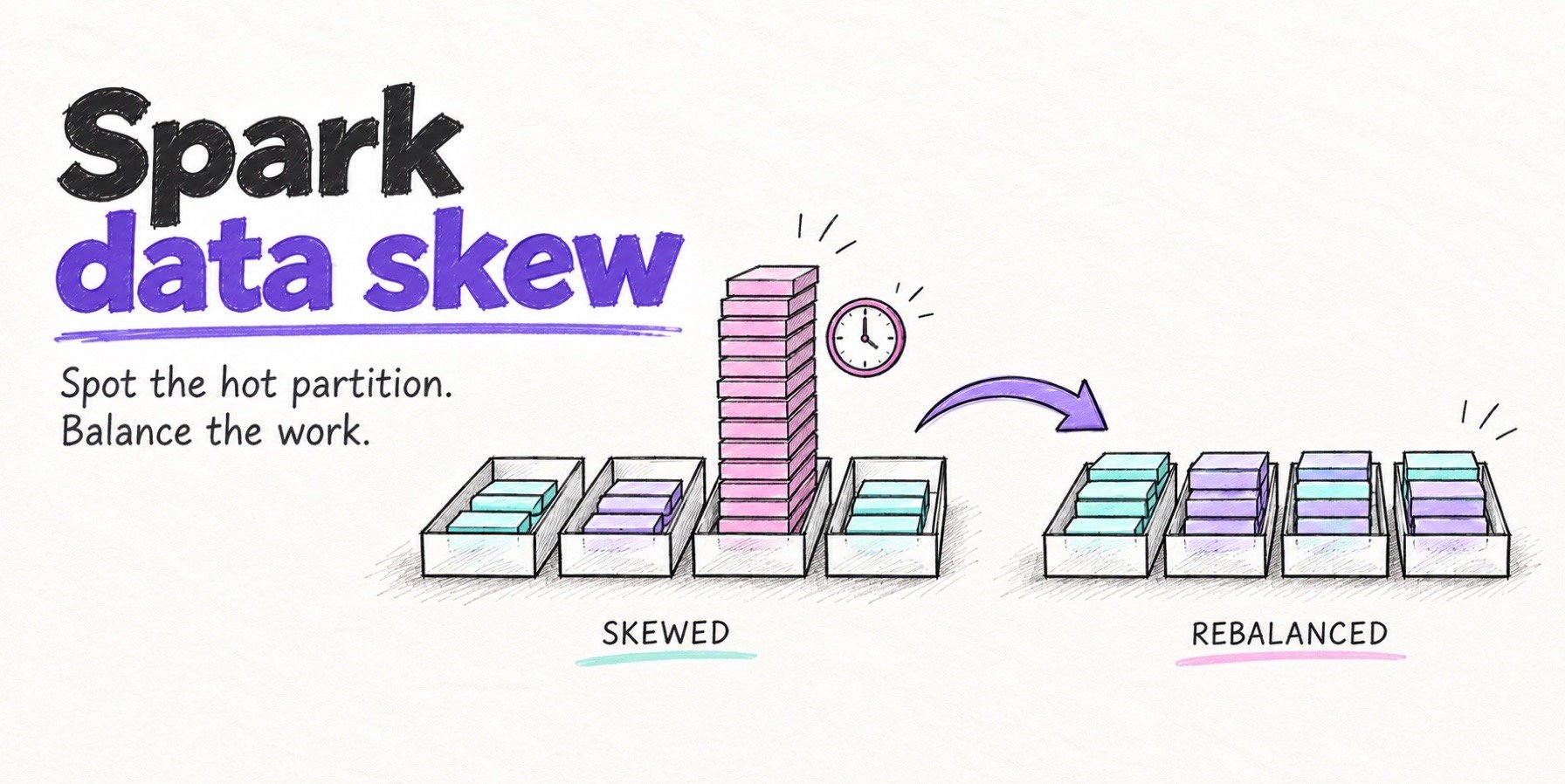
Skew is a few partitions carrying most of the rows. The slow task has a much larger shuffle read than its neighbours. AQE skew join handling is on by default and splits a partition that is both larger than 5× the median and over 256 MB (spark.sql.adaptive.skewJoin.skewedPartitionFactor and skewedPartitionThresholdInBytes). It only applies to sort-merge and shuffle hash joins, so skewed aggregations and window functions need a hand. Find the hot key with a GROUP BY key ORDER BY count DESC LIMIT 20; nulls are the usual culprit. Fix in this order: filter the key if it carries no business meaning, let AQE handle joins, and salt as the last resort, since it changes code. Our skew guide walks through salting with a worked example.
Spill lets a task write intermediate data to disk when it cannot keep that data in execution memory. Some spill is normal and can be cheaper than provisioning enough memory to eliminate it. Investigate substantial spill when it accompanies long task durations. Check skew and per-task shuffle sizes first. If partitions are too large, test more shuffle partitions or auto; if memory pressure persists across balanced partitions, test more memory per core or less concurrent work. Compare total job time and cost before keeping the change.
Data explosion is a join or explode() that multiplies rows mid-query, so a 10 GB input becomes 500 GB of shuffle. The input partitions were sized for 10 GB. Lower spark.sql.files.maxPartitionBytes from its 128 MB default to 16 MB or 32 MB on the exploding read, or repartition() after it, and raise shuffle partitions for the join that follows.
| Symptom in the Spark UI | Likely cause | Fix |
|---|---|---|
| Max task duration at least 50% above the 75th percentile, with a large shuffle read on that task | Skew | AQE skew join, filter or salt the hot key |
| Substantial spill and slow tasks with large shuffle partitions | Partitions may be too large | Check skew; test more partitions or auto |
| Substantial spill and slow tasks across balanced partitions | Execution-memory pressure | Test more memory per core or less concurrency; compare cost |
| Shuffle write far larger than stage input | Data explosion | Smaller input partitions, repartition after explode |
| Many Exchange nodes, small dimension in a SortMergeJoin | Missed broadcast | Raise threshold or add a BROADCAST hint |
| GC Time above about 10% of Task Time (rule of thumb) | Heap pressure | Inspect GC logs, object allocation and cached data before adjusting memory |
| Executors with near-zero Task Time | Idle capacity | Lower min workers, fix parallelism gaps |
| Every file scanned on a filtered query | Layout doesn’t match predicate | Cluster or partition on the filter column |
Caching and MERGE
The disk cache does most of the caching work on Databricks and needs no code. The disk cache, formerly called the Delta cache, keeps copies of remote Parquet and Delta files on the worker’s local SSD, fills on first read, and is on by default on SSD-backed worker types, so for a BI or repeated-read workload the main decision is picking an instance type with local SSD. Spark caching stores reusable results according to the selected storage level. PySpark DataFrame.cache() defaults to MEMORY_AND_DISK_DESER, so cached partitions can also reside on disk. Cache when several actions reuse the same intermediate result, and measure the benefit against memory pressure, disk I/O and GC overhead. On SQL warehouses and Databricks Runtime 14.2 and later, CACHE SELECT is ignored in favour of the automatic algorithm.
SQL warehouses add a query result cache on top: a local cache per warehouse and, on serverless, a remote cache shared across the workspace, both invalidated when the underlying tables change and expiring after 24 hours. That is why a dashboard’s second load is near-instant and tells you nothing about the engine; set use_cached_result = false when benchmarking.
MERGE. Low shuffle merge has been the default since Databricks Runtime 10.4. It processes unmodified rows without a shuffle and tries to keep their existing layout, so the remaining cost is finding the files to touch. Give the ON clause a predicate on the clustering or partition column so file pruning can work, broadcast the source when it is under about 200 MB, and let managed-table tuning handle file sizes. For external tables with frequent rewrites, test delta.tuneFileSizesForRewrites and measure the balance between rewrite cost and scan overhead. Photon is required for dynamic file pruning inside MERGE, UPDATE and DELETE.
Cluster configuration
Cluster configuration is mostly about not paying for capacity the job doesn’t use, and the largest item is the compute type. All-purpose compute lists at several times the per-DBU rate of jobs compute on AWS, so scheduled work belongs on a job cluster. Keep all-purpose for development, with auto-termination set to 10 to 15 minutes instead of the 120-minute default.
Instance type and size. Memory-optimized workers for wide joins and workloads with measured execution-memory pressure, compute-optimized for scans, Structured Streaming and OPTIMIZE jobs, storage-optimized (local SSD) for disk-cache-heavy reads. Keep workers under about 128 GB of RAM; very large heaps mean long GC pauses. Small jobs run well on 2 to 4 workers, join-heavy ETL on 8 to 10, and the driver rarely needs more than 4 to 8 cores and 16 to 32 GB unless it collects or broadcasts large data.
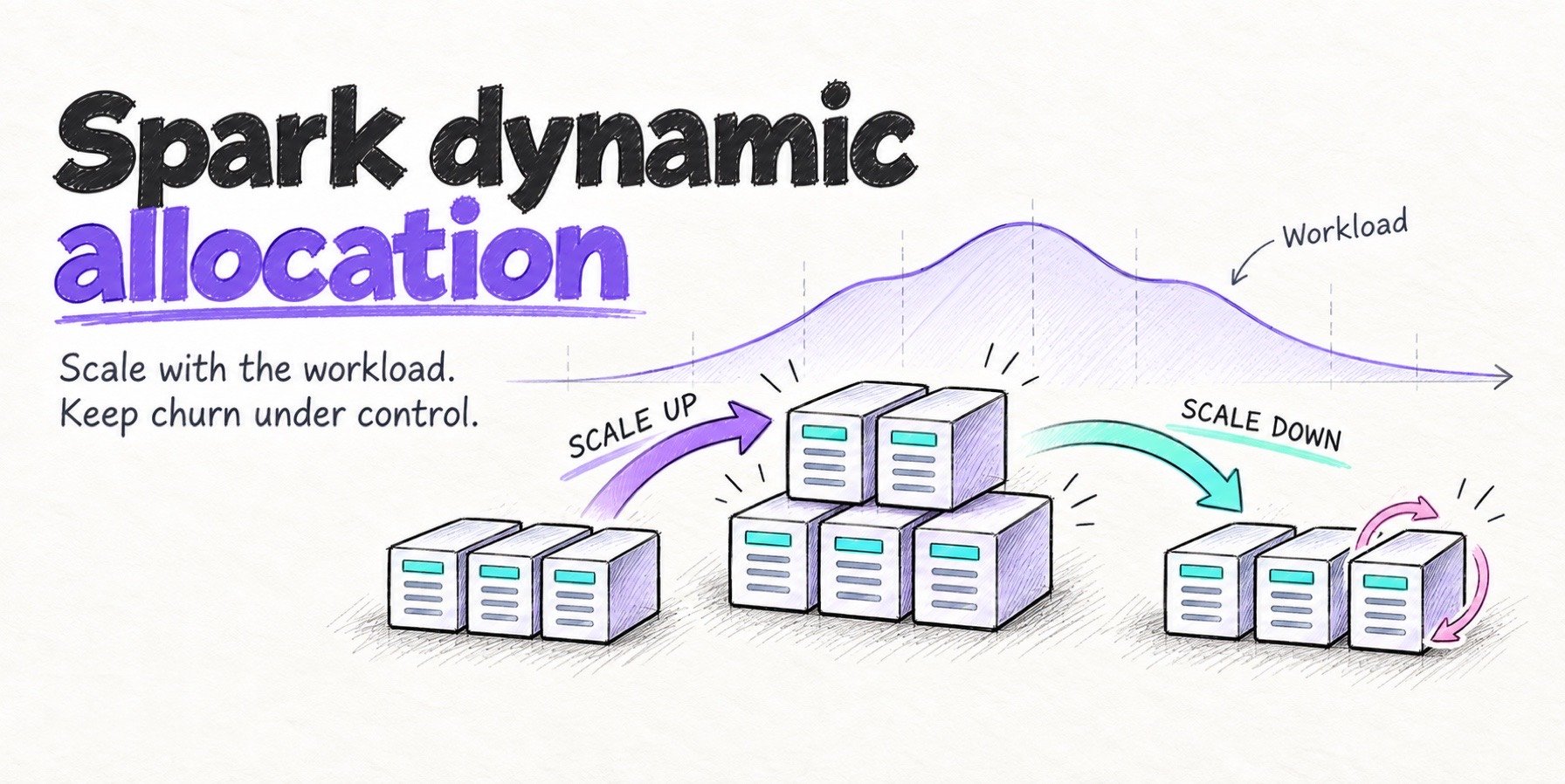
Autoscaling. Good for ad hoc and shared clusters with a minimum of 1. For production jobs, set the minimum at the job’s steady-state need and add a small fixed buffer; a raised min_workers left behind from a one-off backfill is a quiet, recurring cost. Avoid autoscaling for Structured Streaming outside Lakeflow pipelines.
Spot workers, on-demand driver. On AWS, Spot workers can cost up to 90% less than On-Demand instances; actual savings depend on instance type, location and available capacity. Never put the driver on spot, and keep spot off tight-SLA production jobs.
Pools and policies. Instance pools cut cluster start time for SLA-bound jobs; idle pool instances cost VM time but no DBUs. Cluster policies cap instance types, sizes and auto-termination so nobody creates the 50-node all-purpose cluster by accident.
Runtime. Use the latest LTS runtime; Databricks Runtime 18 LTS (Spark 4.1) and 17.3 LTS (Spark 4.0) are current. Re-baseline job runtimes after an upgrade, since plan choices change between releases.
The Photon decision
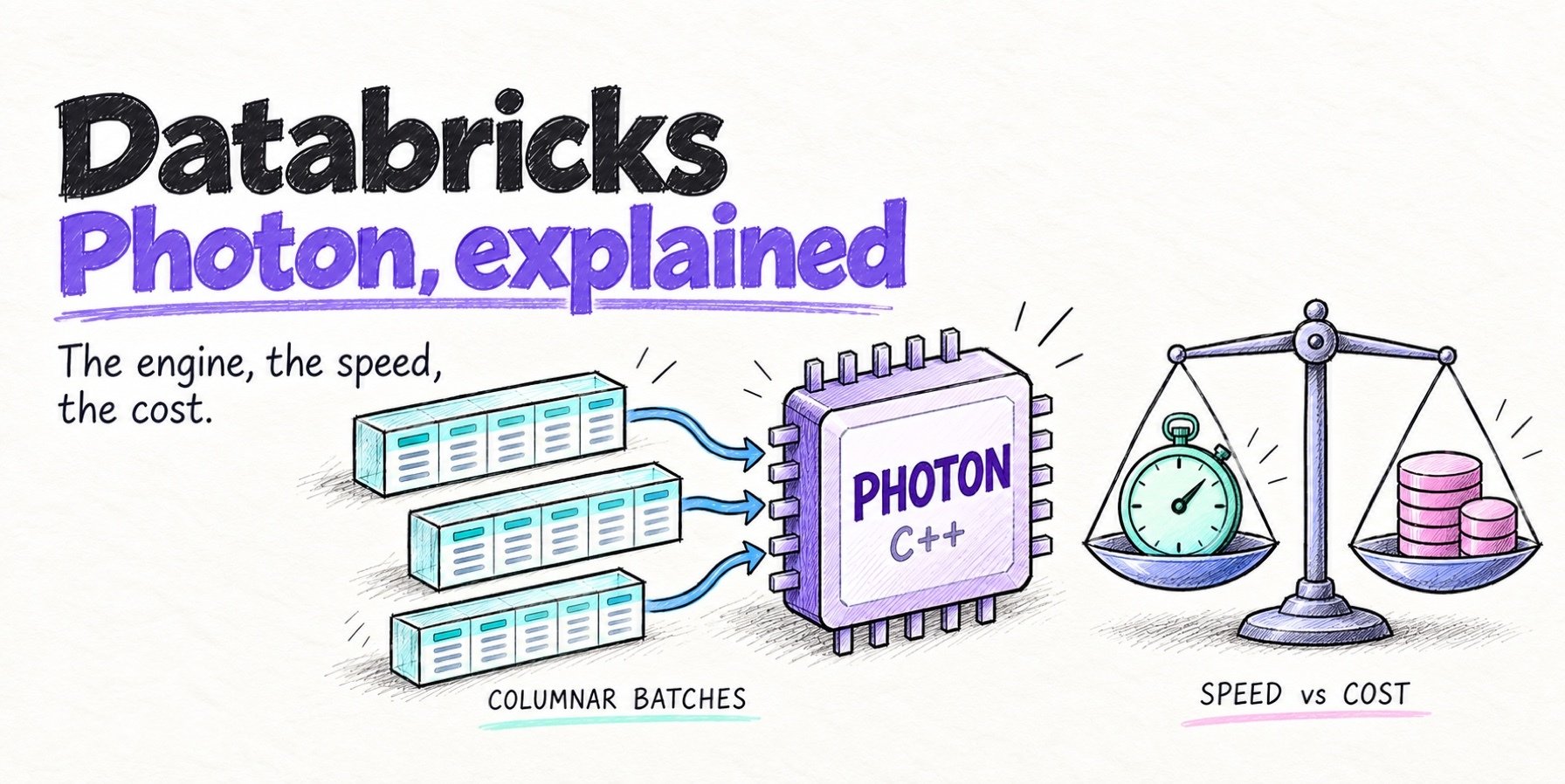
Photon pays for itself on some jobs and costs money on others, so test it per workload. Photon is Databricks’ native vectorized engine. It replaces Spark’s JVM execution for the operators it covers: scans of Parquet, Delta, CSV and JSON, filters, projections, hash aggregates and joins, sorts, window functions, and Delta, Apache Iceberg™ and Parquet writes including MERGE INTO. Photon is enabled on SQL warehouses and serverless compute. Classic compute created through the UI enables it by default; Clusters API and Jobs API configurations must explicitly set runtime_engine to PHOTON.
Photon does not support UDFs, RDD and Dataset APIs, or stateful streaming. Unsupported operations fall back to Spark and still produce correct results. On classic compute, check operator colours and timings in the Spark UI; on SQL warehouses and serverless, check Photon task-time share in the query profile. Time spent in unsupported operations limits the speedup available to the whole job.
On classic job and all-purpose clusters, distinguish DBU consumption from DBU price. Databricks documents a different DBU consumption rate for Photon-enabled instances than for the same instances without Photon. A higher emission rate means more DBUs billed per hour on that hardware; it does not by itself mean each DBU costs more. At the same applicable price per DBU, two runs that consume the same total DBUs have the same DBU charge. Photon can offset a higher hourly consumption rate by finishing sooner. Compare total cost per completed run, including DBU charges and cloud infrastructure. Photon can accelerate scans, joins, aggregations and writes, while unsupported operations fall back to Spark. Databricks says queries that normally finish in under two seconds see no meaningful improvement.
As of October 29, 2026, the Databricks Lakeflow Jobs pricing page lists Photon on Jobs Classic clusters at 2.9× the DBU emission rate of non-Photon. At the same runtime and price per DBU, that means 2.9× the DBU charge. This multiplier applies to DBU consumption, not the separately billed infrastructure.
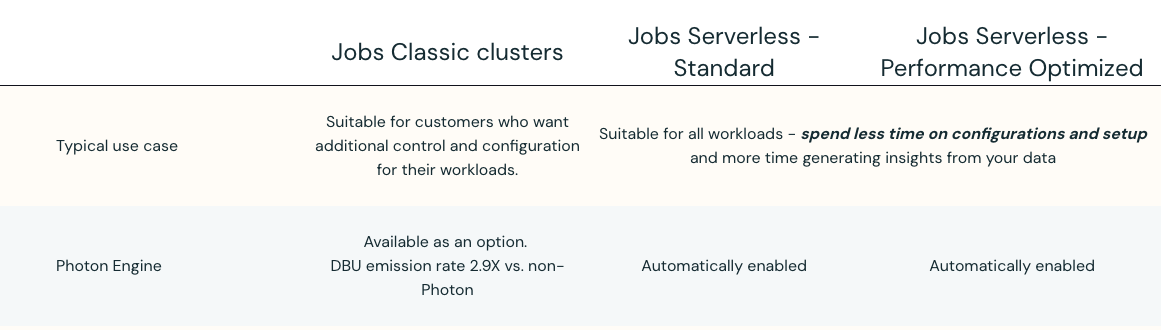
Run the job with runtime_engine set to PHOTON and to STANDARD on the same input and cluster shape. Use system.billing.usage to calculate DBU charges and add the cloud infrastructure cost for each completed run. Check operator timings in the Spark UI to see where execution time goes; counting blue or orange operators alone does not establish whether Photon saves money.
What tuning can’t fix
Everything above changes the instance-hours a job needs or the compute type it runs on. Four terms are set by Databricks and don’t move with any configuration: the per-DBU rate, the Photon premium, the engine, and the configuration surface on serverless.
Each compute SKU has a published price per DBU, scoped to its cloud, region and service tier. Spark settings do not change that price. You can choose a different compute type or negotiate a contract discount. Photon adds a separate consideration on classic compute: its DBU emission rate for the selected instance changes the number of DBUs billed per hour. Keep that consumption rate distinct from dollars per DBU. SQL warehouses and serverless include Photon, and serverless bundles infrastructure into its charge rather than billing VMs separately.
The engine is the third fixed term. On Databricks you run Databricks’ engine, Spark or Photon, at the version your runtime ships. When a job is right-sized, laid out well and still slow, the remaining lever is how fast the engine executes a plan per core, and that is set by the vendor.
Serverless trade-offs. Serverless removes cluster management and bills infrastructure into the DBU rate, and Databricks handles sizing and scaling. The trade is the configuration surface. Most Spark configurations are unsupported, and so are the RDD APIs. df.checkpoint(), CACHE TABLE and the catalog cache calls raise exceptions, while df.cache() and df.persist() work. UDFs are capped at 1 GB of memory, there is no Spark UI, only the query profile, and runs are capped at 7 days. For many jobs that is a fair trade. For the shuffle-partition, join-strategy and executor-sizing fixes above, it means the lever is gone.
Where Quanton fits
Quanton is the Spark engine from Onehouse, available on its own at quanton.dev, and it can be bought and used without the Onehouse platform. It is relevant here because it changes the two things in the list above that tuning can’t: the engine, and the billing model that engine runs under. It has an open core, the first 100 GiB processed each month is free, and one config line points a job back at open-source Spark.
The engine architecture page describes where the speed comes from. Planning is storage-aware: it uses table metadata, layout and indexes to decide what to read, and rewrites eligible plans to remove duplicate scans, collapse self-joins and reduce shuffles before execution. Execution is native across the extract, transform and load phases: a reader that overlaps storage requests with decoding, relational operators rewritten on top of Velox, and for writes, index lookups to locate affected records with a low-shuffle columnar MERGE path and native writers that keep data columnar.
Quanton bills on data volume: per GiB read and written, tiered from $0.0009 per GiB read after the free allowance, with writes at twice the read rate. It deploys on your own Kubernetes or VMs in your cloud account, where your Spot and committed-use discounts apply to the compute underneath it. It also runs inside existing Spark platforms, including Databricks, EMR, Dataproc and Fabric. A job that finishes faster uses fewer instance-hours, and the Quanton fee stays tied to data volume, so it is unchanged by runtime or cluster size.
The figures are our own runs. On quanton.dev/benchmarks, the 10 TB TPC-DS suite (99 queries, 11 × m8gd.4xlarge) finished in 2,034 seconds on Quanton against 2,550 seconds for the configuration labeled “Databricks Photon 18.2” on the benchmark page and 12,200 seconds for open-source Spark. To isolate the difference in engine fees, the pricing calculator’s TPC-DS preset assumes equal runtime for Quanton on your own infrastructure and Databricks Classic Photon on the same hardware. As of October 29, 2026, that preset uses 7,530 GiB read, no writes, one run per month, 0.565 hours, 11 nodes at $0.71808 per node-hour, and no infrastructure discount. The Photon estimate uses the Premium US-East-1 classic rate of $0.15 per DBU.
Under those assumptions, Quanton’s volume-based fee is $5.38 versus $12.35 in Photon DBU charges, or 56% less. We compare those fees because the underlying infrastructure costs the same $4.46 on each side: holding runtime and hardware constant isolates the effect of the billing model. Including infrastructure, the calculator estimates $9.84 for Quanton versus $16.82 for Classic Photon, about 41% less overall. This illustration gives both engines the same runtime rather than crediting Quanton with the speed advantage in our measured run.
TPC-DS measures reads and transformations only. The write-side numbers on the same page are larger (4.1× over open-source Spark on the 1 TB LakeLoader DIM load, about 4× on compaction), but they compare against open-source Spark, so there is no like-for-like write benchmark against Photon to cite here.
NetApp has also published validation of Quanton’s acceleration over open-source Spark: in its StorageGRID-backed Kubernetes lab, a 1 TB TPC-DS suite completed in 795 seconds on Quanton versus 3,489 seconds on OSS Spark, a 4.4× speedup. The NetApp report describes joint NetApp–Onehouse engineering work. Its 1 TB workload is a different scale and environment from the 10 TB TPC-DS benchmarks on quanton.dev; it validates acceleration over OSS Spark without reproducing the Photon comparison.
Running Quanton inside Databricks
Quanton can also accelerate a non-Photon Databricks Classic cluster. Keep Photon disabled and use Quanton as the execution engine for the workload. This gives the cluster Quanton acceleration while retaining the standard non-Photon DBU emission rate, avoiding the 2.9× Photon emission multiplier shown above. Quanton’s fee depends on data processed, so it does not increase with the cluster’s runtime.
For this deployment, compare Photon DBU charges against standard Databricks DBU charges plus Quanton’s volume-based fee. At equal runtime on the same hardware, infrastructure costs are again equal. The standard Databricks DBU charge remains part of the Quanton total, so the 56% engine-fee saving from the independent-infrastructure example is not the savings estimate for this deployment. Run the same job on both configurations and compare the combined charges; any runtime reduction also lowers the billed cluster hours.
Keeping it tuned
A tuned job stays tuned only as long as its inputs do. Data grows, access patterns change, runtimes upgrade, and someone raises min_workers to get through a backfill and never lowers it, so the last step is a small amount of monitoring that runs without you.
-
Tag everything. Cluster and job tags flow into
system.billing.usageascustom_tags, which is the only way to attribute spend to a team or pipeline at scale. -
Alert on system tables. Build a weekly rollup by workspace and job, then alert when this week’s DBUs exceed the trailing four-week baseline. The 30-day ranking query above needs time buckets for this; the official job-cost examples include spend trends to adapt.
-
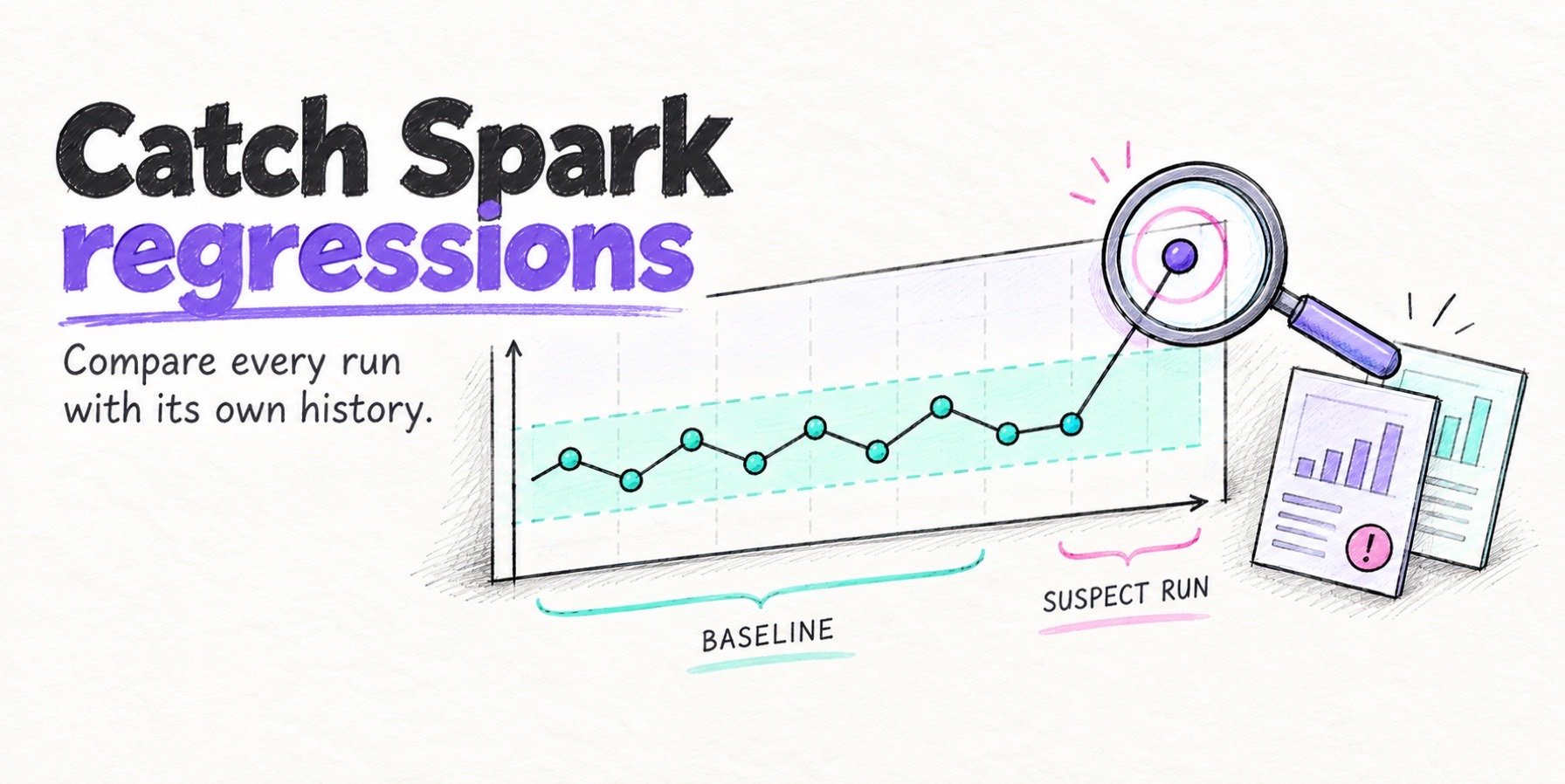
Baseline runtimes. Keep P50 and P95 duration per job from its own history and flag runs beyond P95. A job that swings 20% run to run can hide a 30% regression for weeks; a one-off spike, a step change after a release, and slow drift each need a different response. Our regressions guide has the method and an afternoon’s worth of script.
-
Review on a cadence. Monthly, pull the top 20 jobs by DBUs and look at utilization next to spend. Re-run the Photon test on the top five after each runtime upgrade.
When tuning runs out
At some point the top jobs are on job compute, laid out with liquid clustering, without material bottlenecks from spill or skew, broadcasting what they should, on the right instance type with a sane autoscale range. Costs are still growing because data is, and four options remain.
-
Move workloads off all-purpose compute if any remain there. This is usually the largest single saving left on the table.
-
Negotiate commit discounts. Databricks offers committed-use pricing; the discount depends on volume and term, and it lowers the rate without changing anything about the job.
-
Re-test Photon per workload. Left on globally, the jobs where it loses pay the premium every night.
-
Run the same jobs side by side on a different engine. This is the only option that changes the engine term. With Quanton that means pointing it at the same tables in your object storage from your own Kubernetes or VMs, running the top jobs on both, and comparing total cost per run: Databricks DBUs plus VMs on one side, Quanton’s per-GiB fee plus VMs on the other.
If you want a number before deciding, Spark Analyzer reports how much of the current spend is waste that tuning can still recover, and the TCO calculator models the per-GiB fee against your own data volume.
You can try Quanton on a representative job without buying the Onehouse platform.
FAQs
Does Photon always reduce Databricks cost?
No. Test each job with Photon on and off using the same input and cluster shape. Compare total cost per completed run, including DBU charges and cloud infrastructure, since faster execution can offset a higher hourly DBU charge.
Should I use liquid clustering or partitioning?
Liquid clustering for new tables, per Databricks’ current recommendation. It replaces both partitioning and Z-order, is incremental, and is not compatible with either on the same table. Keep partitioning on existing large tables where each low-cardinality partition holds at least 1 GB and the access pattern still matches. Databricks Runtime 18.1 and above can convert a partitioned Delta table in place with ALTER TABLE t REPLACE PARTITIONED BY WITH CLUSTER BY (...). That version also supports partial reclustering with OPTIMIZE t FULL WHERE <predicate>; the predicate must be a simple range on one clustering column, and files whose ranges overlap it are included.
What can I not tune on Databricks serverless?
Most Spark configurations, including shuffle partitions and executor sizing; RDD APIs; CACHE TABLE and df.checkpoint(); cluster size and instance type. Layout, joins, statistics and query structure are still yours.
Can Quanton run on Databricks?
Yes. Quanton can run inside a non-Photon Databricks Classic cluster, providing acceleration without Photon’s 2.9× DBU emission multiplier. You still pay standard Databricks DBU charges, Quanton’s volume-based fee and infrastructure costs. Compare that combined cost with Photon on the same workload. Quanton also runs independently on your own Kubernetes or VMs, where the comparison is Quanton’s fee plus infrastructure.
Author

Vinoth Chandar
CEO
Onehouse founder/CEO; Original creator and PMC Chair of Apache Hudi. Experience includes Confluent, Uber, Box, LinkedIn, Oracle. Education: Anna University / MIT; UT Austin. Onehouse author and speaker.