Talk with our engineers by joining the new Onehouse community Slack!
TL;DR
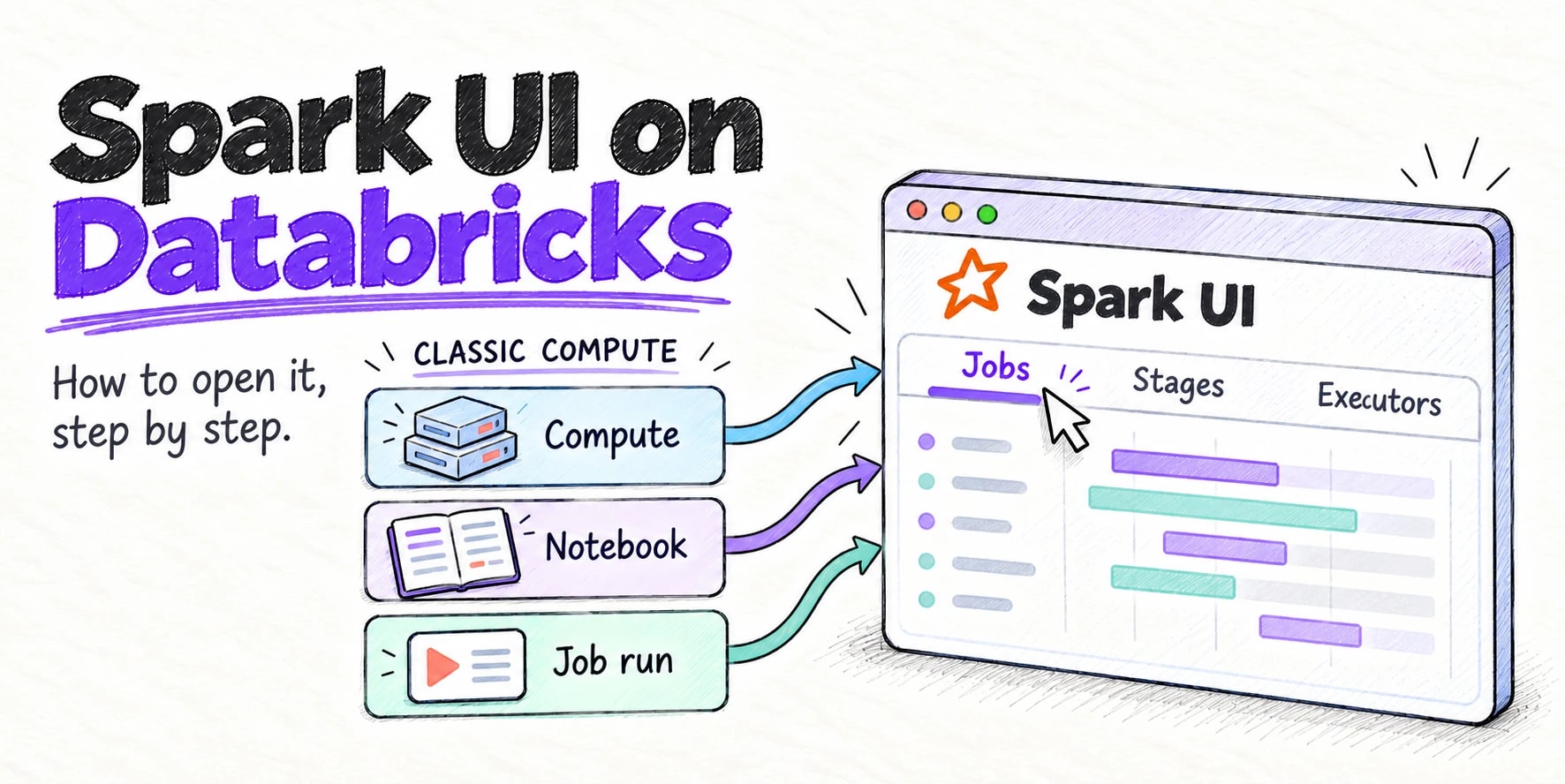
On classic compute, click Compute in the sidebar, click your compute and choose the Spark UI tab. From a notebook, expand Spark Jobs under a cell and click View next to a job. For a job run, open Jobs & Pipelines > Runs, click the run's start time and click Spark UI in the Compute section on the right. Serverless compute and SQL warehouses have no Spark UI. Use the query profile there instead.
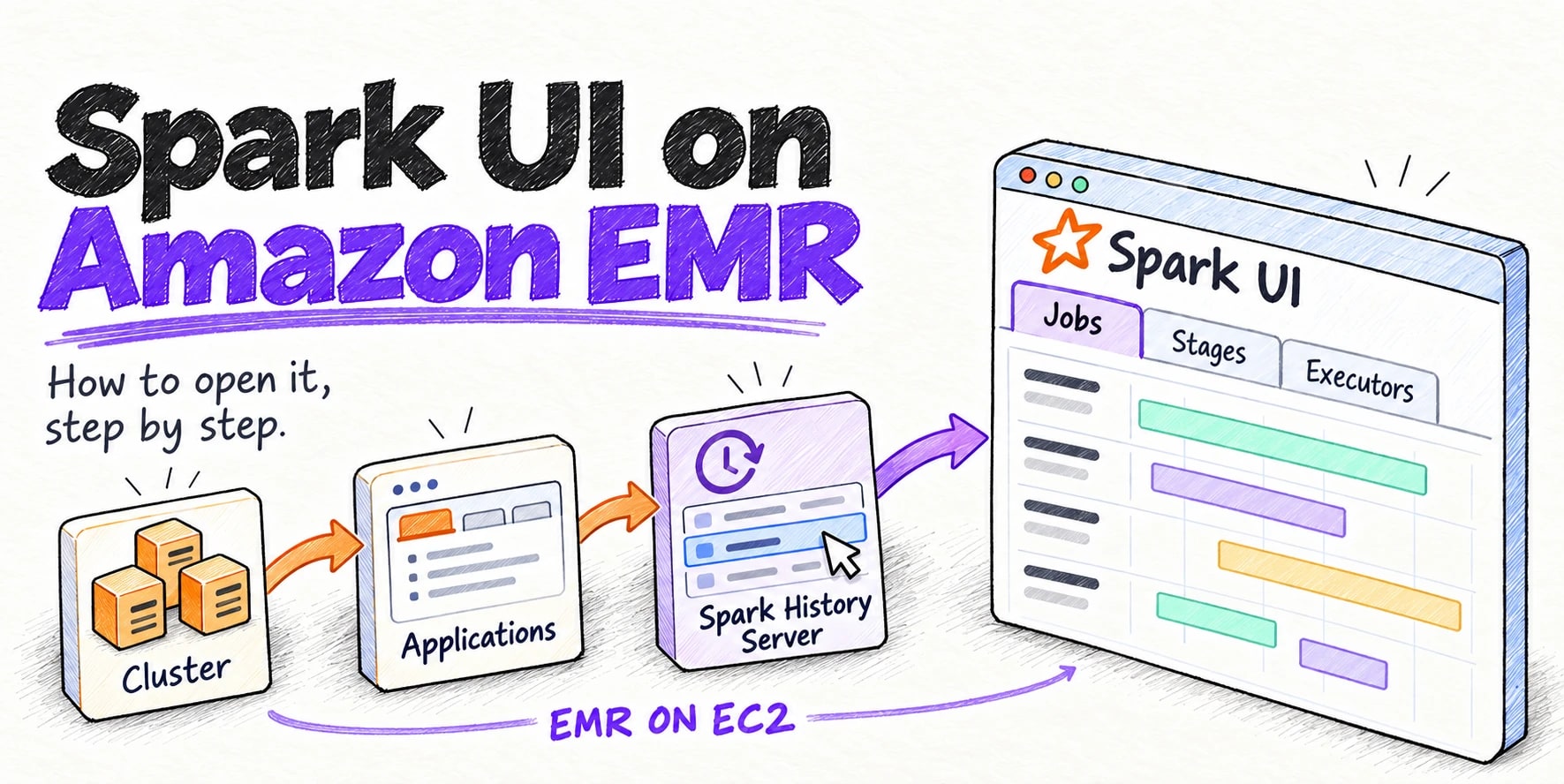
The Spark UI is the web page where Apache Spark™ shows what your code did: its jobs, stages, tasks, executors and SQL queries. It is the first place to look when a notebook cell or a job is slow or fails. On Databricks you don’t install or start anything. Every classic compute already runs a Spark UI, and you can open it from three places: the Compute page, a notebook and a job run.
This guide shows each of them step by step, and what to do when there is no Spark UI to open. The screenshots are from a Databricks on AWS workspace in October 2026, on Databricks Runtime 19 (Apache Spark 4.2.0), in the dark theme.
Which compute are you using?
Find your row first. The Spark UI exists only on classic compute.
| Your code runs on | Has a Spark UI? | Where to look |
|---|---|---|
| All-purpose compute (a cluster you start) | Yes | Compute > your compute > Spark UI tab |
| Job compute (a cluster a job starts) | Yes | Jobs & Pipelines > Runs > start time > Compute > Spark UI |
| Serverless compute for notebooks and jobs | No | See performance under the cell > query profile |
| SQL warehouse | No | Query History > query > query profile |
Databricks Free Edition runs on serverless compute only, so it has no Spark UI either.
Before you start
- Permissions. On a compute, you need CAN ATTACH TO or higher (or the beta CAN VIEW permission) to view its Spark UI. On a job, you need CAN MANAGE RUN or higher; plain CAN VIEW on a job isn’t enough (Databricks access control).
- Some Spark code has run. The Spark UI shows Spark work only. If your code is pure Python, or only calls APIs, the Jobs and Stages tabs stay empty.
Method 1: Open the Spark UI from the Compute page
This works for any all-purpose compute, running or terminated.
Step 1: Go to Compute
Click Compute in the left sidebar. The page opens on the All-purpose compute tab. Click the name of your compute.

Step 2: Click the Spark UI tab
The compute details page has a row of tabs: Configuration, Notebooks, Libraries, Event log, Spark UI, Driver logs, Metrics and more. Click Spark UI.

Step 3: You’re in
The Spark UI opens on its Jobs tab, inside the Databricks page. To give it the whole browser window, click Open in new tab at the top right of the Spark UI tab.

Method 2: Open the Spark UI from a notebook
Use this when you want the Spark UI for one specific cell.
Step 1: Run a cell that uses Spark
Your notebook must be attached to classic compute, not serverless. New notebooks attach to Serverless by default, so pick your compute from the compute selector at the top right of the notebook first. Then run any cell that does Spark work, such as:
spark.range(10_000_000).selectExpr("sum(id)").show()Under the cell, a Spark Jobs line appears with the number of jobs the cell ran, for example (2) Spark Jobs.
Step 2: Expand Spark Jobs and click View
Click Spark Jobs to expand it (Databricks docs). Each Spark job the cell ran is listed, such as Job 0 View (Stages: 1/1). Click View next to a job, and the Spark UI opens on that job’s details.

Method 3: Open the Spark UI from a job run
Use this for scheduled or triggered jobs that run on classic compute: job compute or an all-purpose cluster.
Step 1: Open the run
Click Jobs & Pipelines in the left sidebar, then the Runs tab. Find your run and click the link in its Start time column (Databricks docs).

Step 2: Click Spark UI in the Compute section
For a single-task job, the start time opens the task’s run page directly. For a job with several tasks, click the task in the graph first. On the right, the Compute section shows the cluster that ran the task, with View details, Spark UI, Logs and Metrics links. Click Spark UI.

There’s also a shortcut: on the job’s own page, the Runs table has a Spark column with Spark UI, Logs and Metrics links for every run.
The Spark UI for a job run stays available after the run completes, and Databricks keeps run history for 60 days.
After the compute terminates
You can still open the Spark UI of a terminated all-purpose compute from its Spark UI tab. Two things to know (Databricks docs):
- Restarting replaces the history. After a restart, the Spark UI shows the restarted compute, not the earlier run. Look before you restart.
- Terminated compute is deleted after 30 days unless an admin pins it.
To keep the logs longer, turn on compute log delivery before you start the compute.
If you can’t find the Spark UI
| What you see | Why | What to do |
|---|---|---|
| No Spark UI tab or link | The code runs on serverless compute or a SQL warehouse, which have no Spark UI | Click See performance under the notebook cell, or open Query History, then See query profile (query profile) |
| The Spark UI is greyed out or blocked | Missing permission | Ask an admin for CAN ATTACH TO on the compute or CAN MANAGE RUN on the job |
| Jobs and Stages tabs are empty | The code didn’t run any Spark operations | Check that the cell or task actually uses Spark (DataFrames, Spark SQL) |
| The old run’s history is gone | The compute was restarted, or deleted 30 days after termination | Set up compute log delivery for next time |
What you’ll see in the Spark UI
The tabs along the top of the Spark UI are:
- Jobs: every job your code ran, how long each took and whether it failed.
- Stages: each stage’s tasks, shuffle reads and writes, and spill. Slow or skewed work shows up here.
- Storage: cached tables and DataFrames.
- Environment: the Spark settings the compute ran with.
- Executors: memory, cores, task counts, GC time and logs for each executor.
- SQL / DataFrame: the query plan of each SQL query or DataFrame action.
Three more standard Spark tabs show up only when the application needs them:
- Structured Streaming: the progress of each streaming query. It appears when the application runs a streaming query.
- JDBC/ODBC Server: sessions and SQL statements from JDBC and ODBC clients. It appears when the driver runs the Spark Thrift Server.
- Connect: sessions and queries from Spark Connect clients. It appears when the driver runs the Spark Connect server.
On Databricks compute you’ll often see all three even for a plain batch notebook, as in the screenshot above. The Apache Spark docs describe each tab in Web UI, and Databricks has its own walkthrough in Diagnose cost and performance issues using the Spark UI.
Next steps
Now that the Spark UI is open, these guides help you act on what it shows:
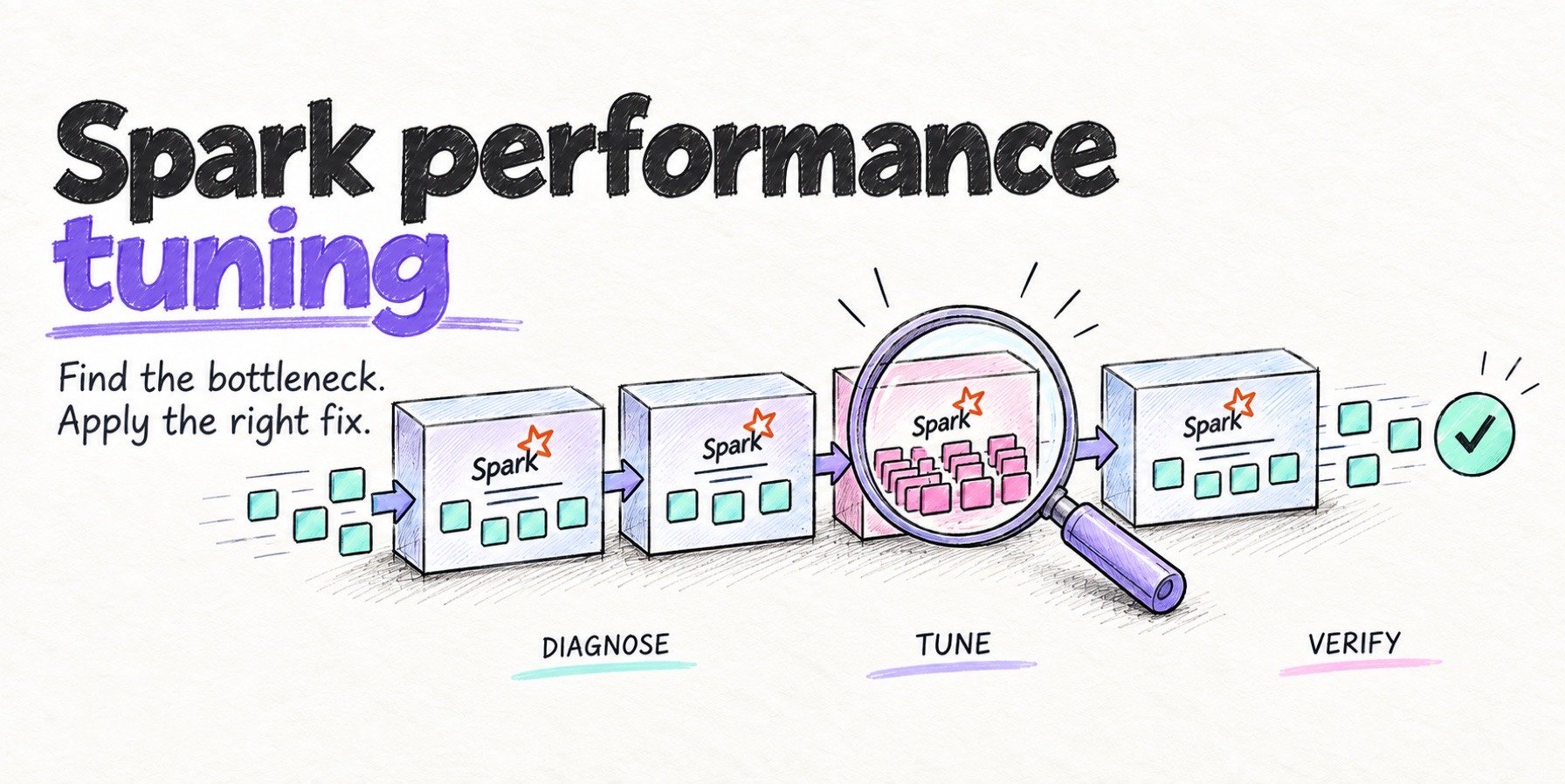
- Spark performance tuning to find the bottleneck.
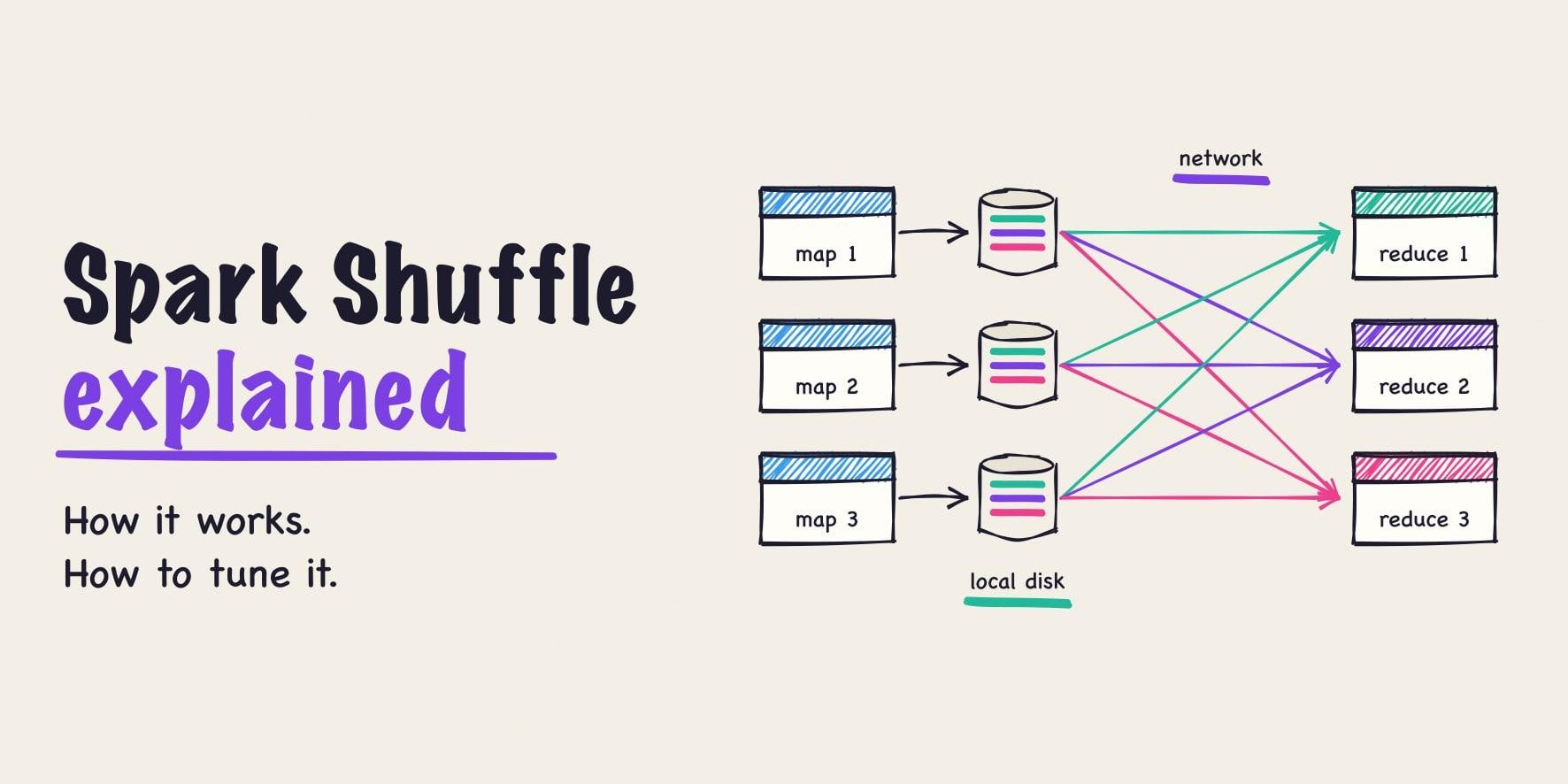
- Spark shuffle, explained for slow or spilling stages.
- Spark memory management for out-of-memory errors.
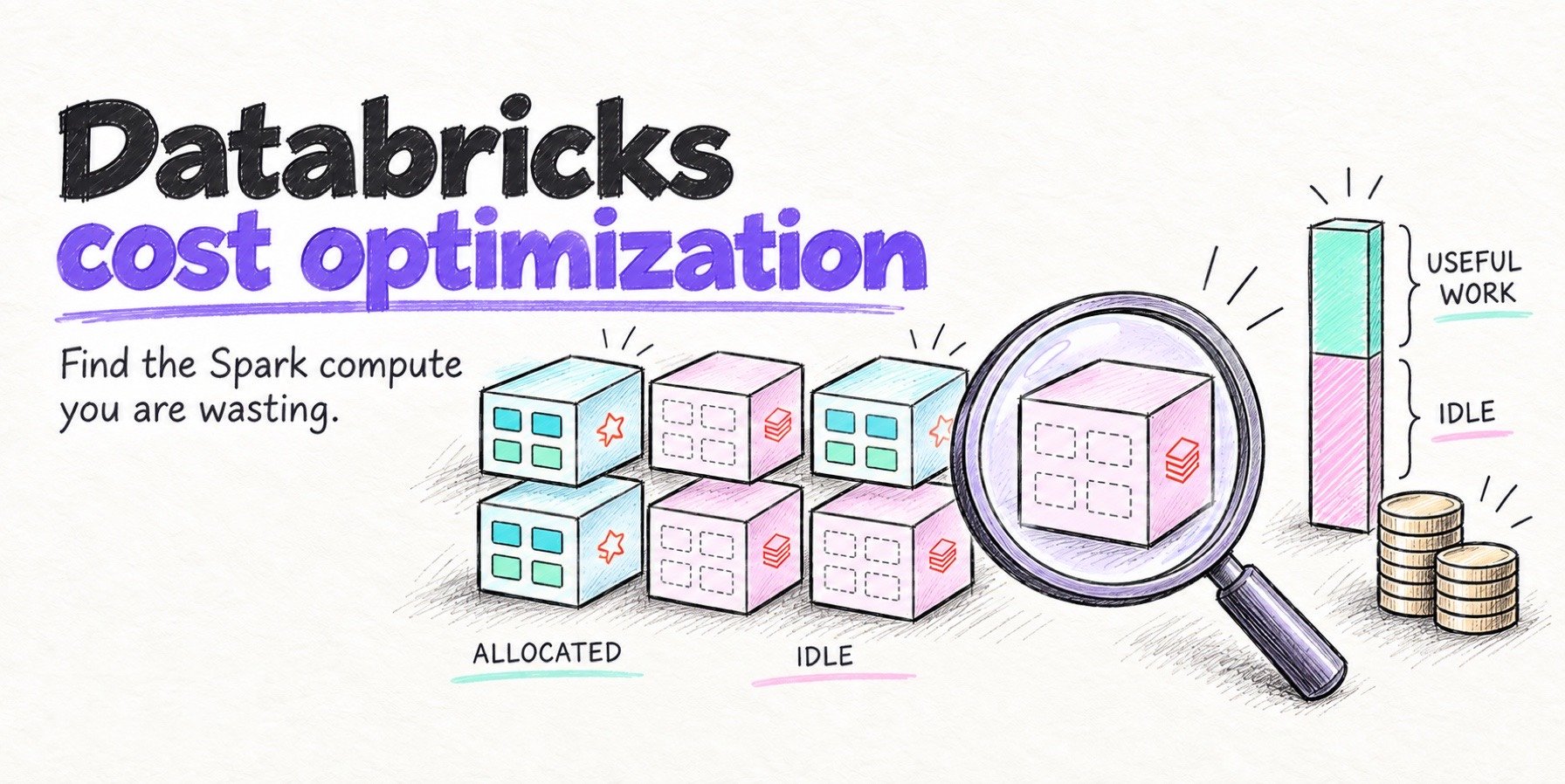
- Databricks cost optimization to see what those slow stages cost.
To check many runs at once instead of one at a time, Spark Analyzer is a free command-line tool from Onehouse. It reads your Spark application history, works with Databricks, and ranks your applications by how much of their compute was wasted.