Talk with our engineers by joining the new Onehouse community Slack!
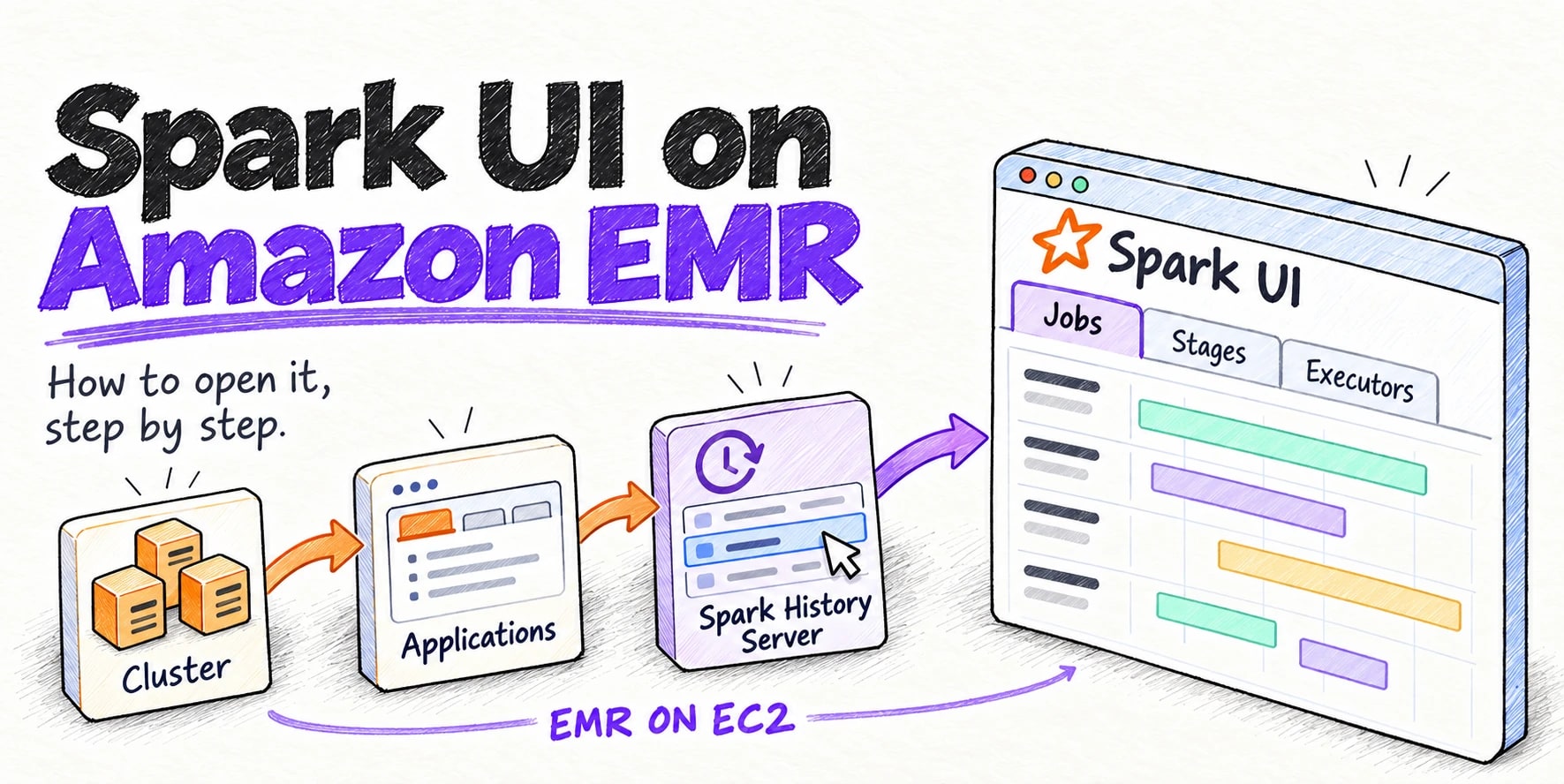
TL;DR
On EMR on EC2, open your cluster in the Amazon EMR console, choose the Applications tab and click Spark history server. The Spark UI opens in a new browser tab, with no SSH, for running and terminated clusters. On EMR Serverless, open your application in EMR Studio, select the job run and pick Spark UI (Running jobs) or Spark History Server (Completed jobs) from the View application UIs menu. On EMR on EKS, open your virtual cluster and choose View logs next to the job run.
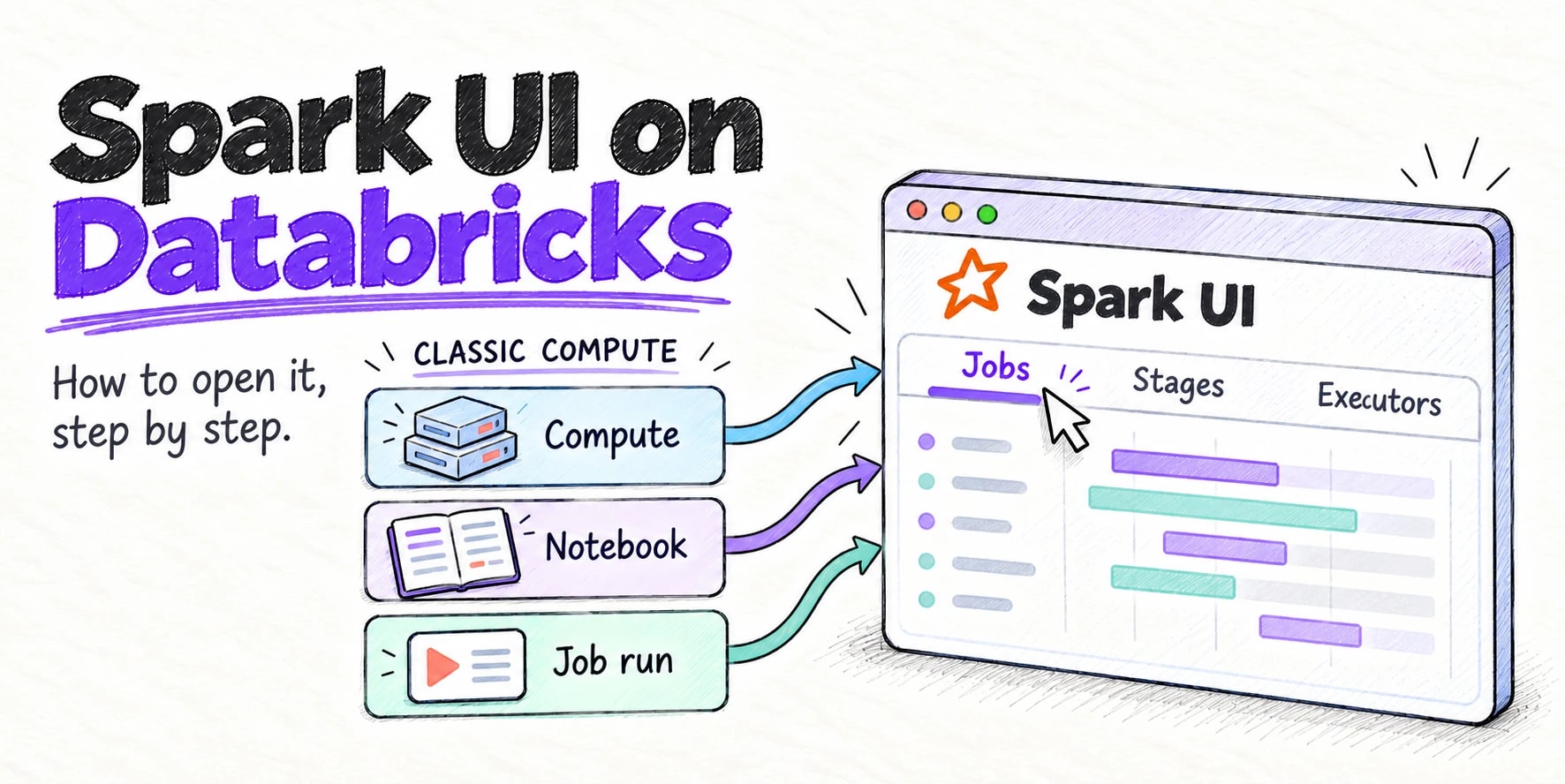
The Spark UI is the web page where Apache Spark™ shows what your application did: its jobs, stages, tasks, executors and SQL queries. It is the first place to look when a job is slow or fails. On Amazon EMR you don’t have to install or configure anything to see it. The EMR console opens the Spark UI for you in a few clicks, and it keeps working after the cluster or job has finished.
This guide shows exactly where to click on each kind of EMR: EMR on EC2 (clusters), EMR Serverless and EMR on EKS. The screenshots are from the Amazon EMR console in October 2026, on release emr-7.14.0.
Which EMR are you using?
Find your row, then jump to that section.
| You run Spark on | Where the Spark UI link is | Still there after the job ends? |
|---|---|---|
| EMR on EC2 (clusters) | Cluster > Applications tab > Spark history server | Yes, for 30 days |
| EMR Serverless | EMR Studio > application > job run > View application UIs | Yes, for up to 30 days |
| EMR on EKS | Virtual clusters > virtual cluster > View logs | Yes |
Before you start
- Permissions. For EMR on EC2 and EMR on EKS, your AWS user or role needs
elasticmapreduce:CreatePersistentAppUI,elasticmapreduce:DescribePersistentAppUIandelasticmapreduce:GetPersistentAppUIPresignedURL(AWS policy example). For EMR Serverless, it needsemr-serverless:GetDashboardForJobRun(API reference). If the link gives you an access error, ask your AWS admin to add these. - A Spark application has run. The Spark UI shows applications, so run at least one Spark job first. On EMR on EC2, give a new application at least two minutes to show up.
- Pop-ups allowed. The console opens the Spark UI in a new window, so allow pop-ups for the AWS console in your browser.
- EMR on EC2 release. The one-click Spark history server needs Amazon EMR 5.25.0 or later (6.14.0 or later in a handful of newer Regions).
How to access the Spark UI on EMR on EC2
Step 1: Open your cluster
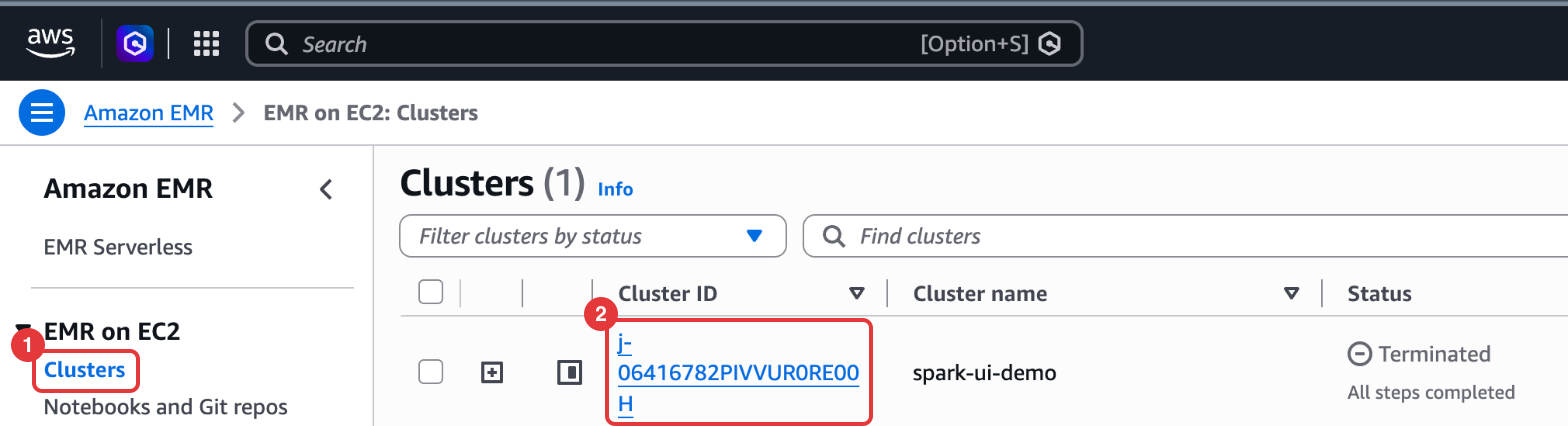
Sign in to the AWS Management Console and open the Amazon EMR console. Check that the Region in the top-right corner is the one your cluster runs in. In the left menu, under EMR on EC2, choose Clusters, then click your cluster’s ID (the link that starts with j-).
Terminated clusters stay in this list for two months, so you can open those the same way.
Step 2: Open the Applications tab and click Spark history server
On the cluster page, choose the Applications tab. Under Application user interfaces, the Persistent application UIs list has a Spark history server link. Click it. The console shows “Loading user interface for Spark history server” for a few seconds, then opens it in a new browser tab.
The same link also sits in the cluster’s Summary panel, under Persistent application UIs.
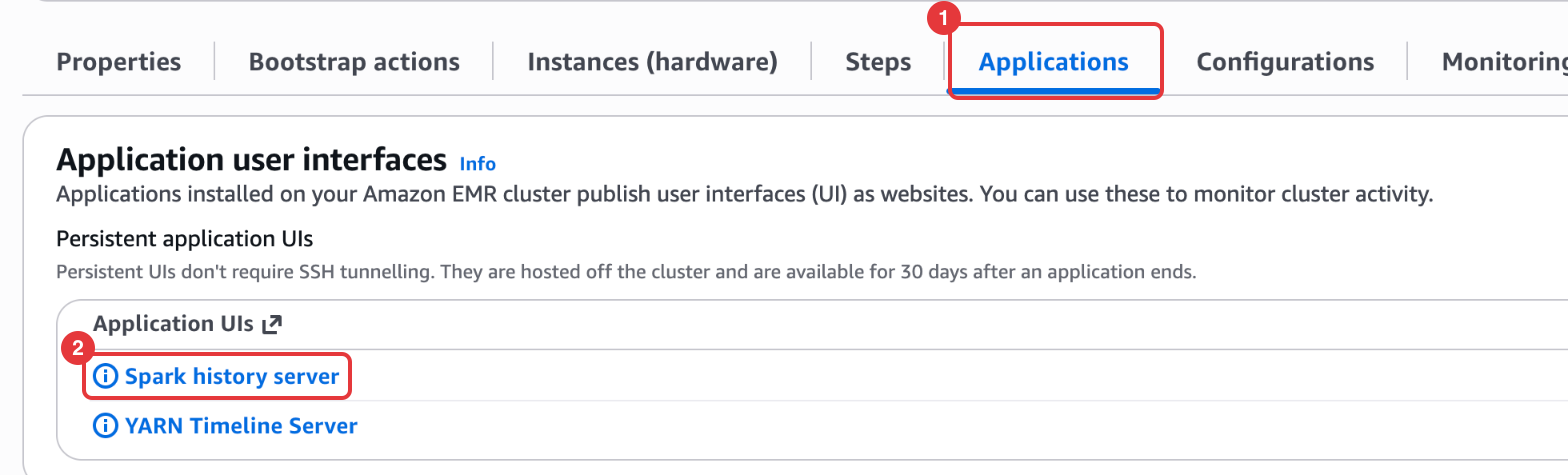
If nothing opens and the console says the Spark history server “failed to load”, your browser blocked the pop-up. Allow pop-ups for the AWS console, then click the link again.
Step 3: Click your application
The Spark History Server lists every Spark application that ran on the cluster. Click the App ID of the one you want. That page is the Spark UI for that run.
If your application is still running, click Show incomplete applications at the bottom of the list.
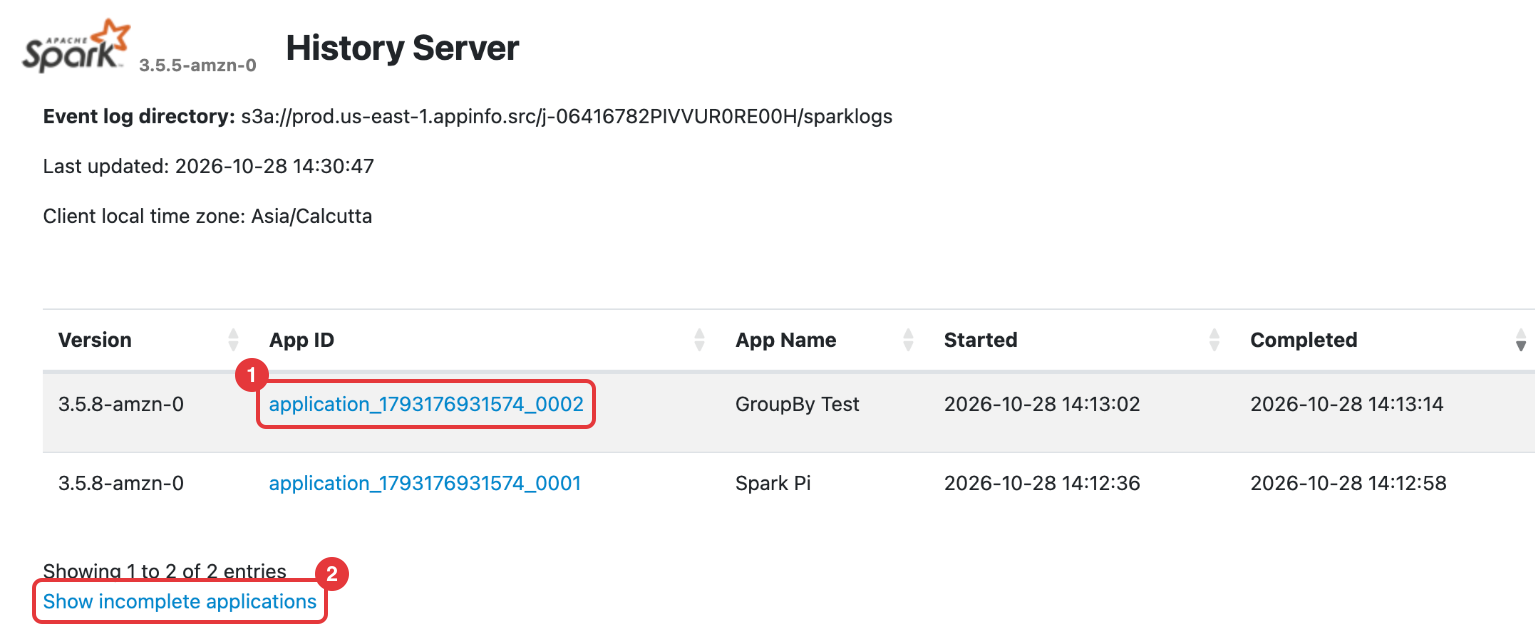
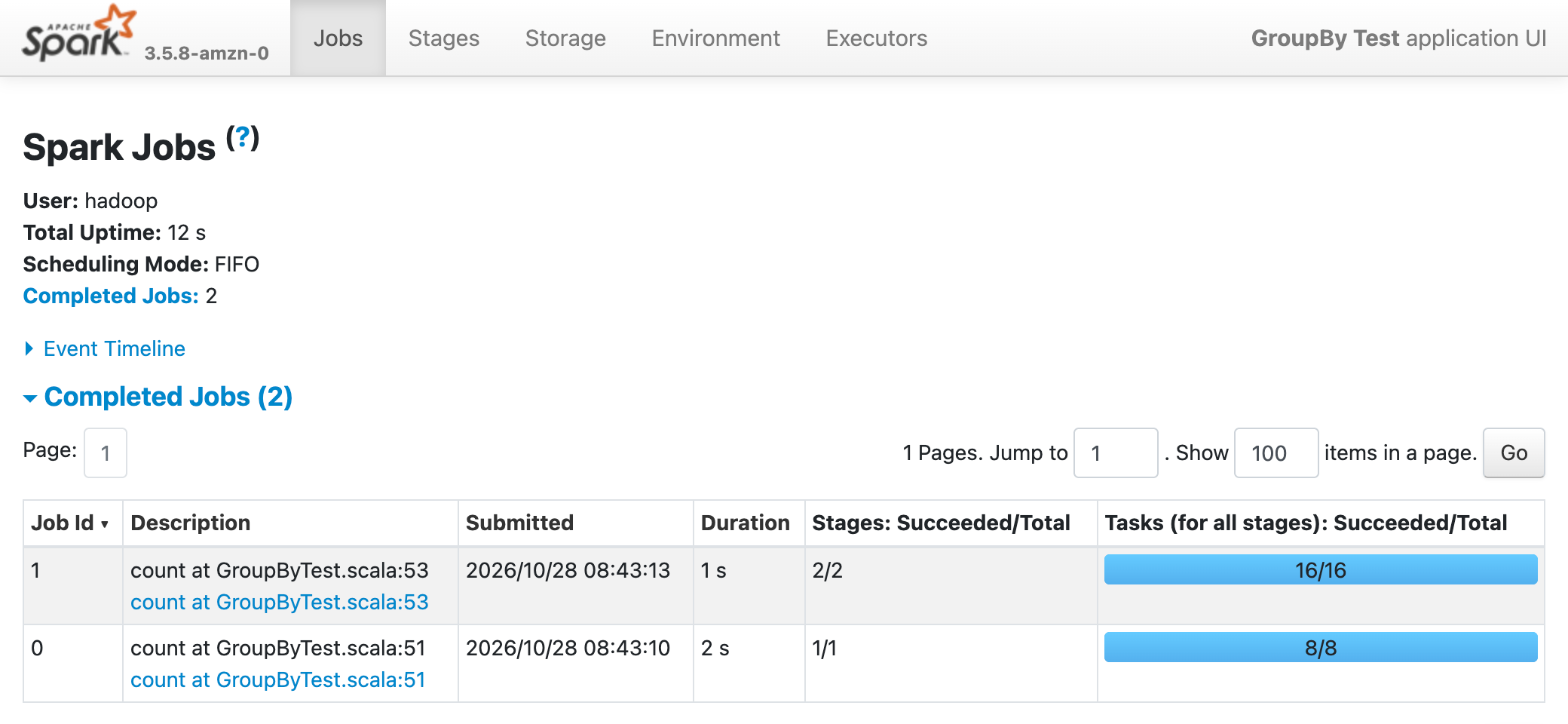
AWS keeps this history for 30 days, even after the cluster terminates.
Want the live Spark UI instead?
The Spark history server link shows a running application with at least a two-minute delay. If you need the live, second-by-second Spark UI of a running application, it runs on the cluster’s primary node: open the YARN ResourceManager on port 8088 and click the application’s Tracking UI link (AWS guide). Those ports are private to the cluster, so you reach them through an SSH tunnel. AWS walks through it in Option 1: Set up an SSH tunnel using local port forwarding.
How to access the Spark UI on EMR Serverless
EMR Serverless has no cluster to open. The Spark UI lives next to each job run in EMR Studio.
Step 1: Open your application in EMR Studio
In the Amazon EMR console, choose EMR Serverless in the left menu. In the Manage applications panel, select Manage applications in EMR Studio, then click the Manage applications button. EMR Studio opens in a new tab with your applications listed. Click your application’s name.
If this Region has no EMR Studio yet, the panel offers to create one (AWS steps).
Step 2: Select the job run and open View application UIs
On the application’s page, open the Batch job runs tab and tick the checkbox next to your job run. Then open the View application UIs menu and choose:
- Spark UI (Running jobs) if the job is still running. This is the live UI.
- Spark History Server (Completed jobs) if the job has finished.
The Spark UI for that job run opens in a new browser tab, straight on its Jobs page. To read the driver and executor logs from there, open its Executors tab and click Logs (AWS steps).
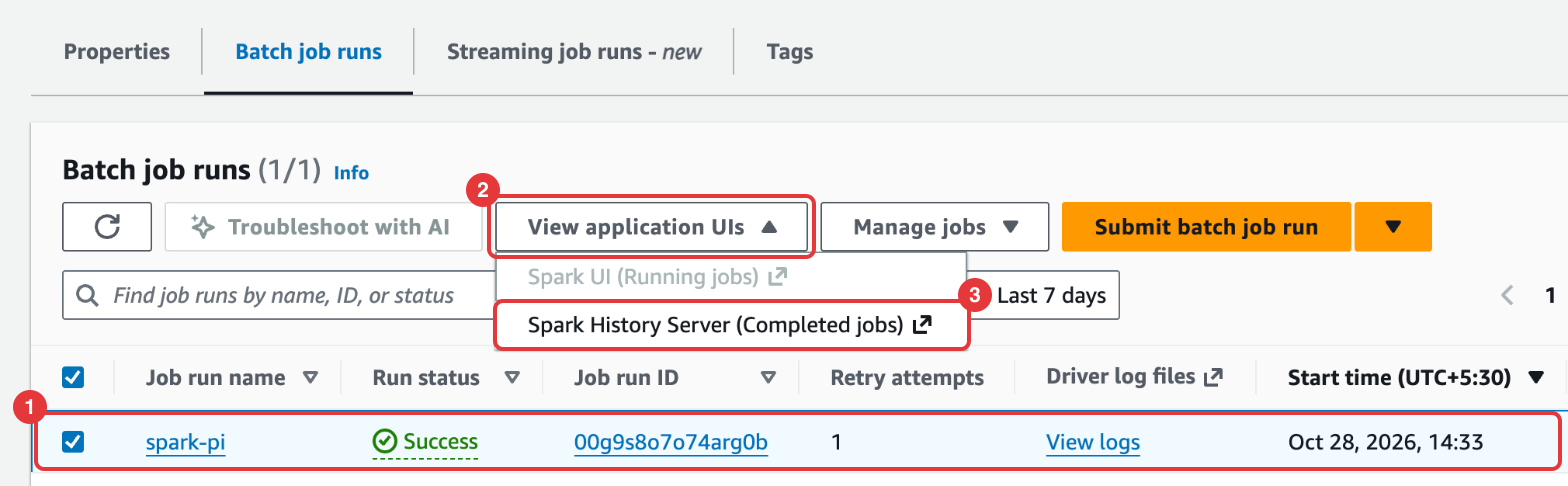
Selecting a job run also opens a Job run retry attempts panel below the list, with a Spark history server link for each attempt. Either way gets you to the same Spark UI.
EMR Serverless keeps these logs in managed storage for up to 30 days. The Spark UI link only works if the job was submitted with Allow AWS to retain logs for 30 days left on, which is the default.
How to access the Spark UI on EMR on EKS
Step 1: Open your virtual cluster
In the Amazon EMR console, under EMR on EKS in the left menu, choose Virtual clusters. Click the virtual cluster your job ran on.
Step 2: Choose View logs next to your job run
In the Job runs table, choose View logs for your job run (AWS steps). The Spark UI for that run opens in a new browser tab.
This link is on by default. If you don’t see it, check whether the job was submitted with persistentAppUI set to DISABLED.
If the Spark UI link doesn’t work
| What you see | Why | What to do |
|---|---|---|
| “Failed to load. Make sure that your browser allows pop-ups” | The browser blocked the new window | Allow pop-ups for the AWS console, then click the link again |
| An access or permission error | Your user or role is missing the IAM actions above | Ask your AWS admin to add them (EC2 and EKS, Serverless) |
| Your application isn’t in the list | It started less than two minutes ago, or it’s still running | Wait two minutes, then click Show incomplete applications |
| No Spark history server link on an EC2 cluster | The cluster has multiple primary nodes, uses AWS Lake Formation, or stores event logs in Amazon S3 instead of HDFS (AWS limits) | Use the on-cluster Spark History Server on port 18080 through an SSH tunnel |
| No Spark UI for an EMR Serverless job | The job is older than 30 days, or it ran with logs going to Amazon S3 only | Re-run the job with managed storage turned on |
What you’ll see in the Spark UI
The Spark UI looks the same on EMR as anywhere else. The tabs along the top are:
- Jobs: every job in the application, how long each took and whether it failed.
- Stages: each stage’s tasks, shuffle reads and writes, and spill. Slow or skewed work shows up here.
- Storage: cached tables and DataFrames.
- Environment: the Spark settings the application ran with.
- Executors: memory, cores, task counts, GC time and logs for each executor.
- SQL / DataFrame: the query plan of each SQL query or DataFrame action. This tab only appears when the application runs SQL or DataFrame code.
The Apache Spark docs describe each tab in Web UI.
Next steps
Now that the Spark UI is open, these guides help you act on what it shows:
- Spark performance tuning to find the bottleneck.
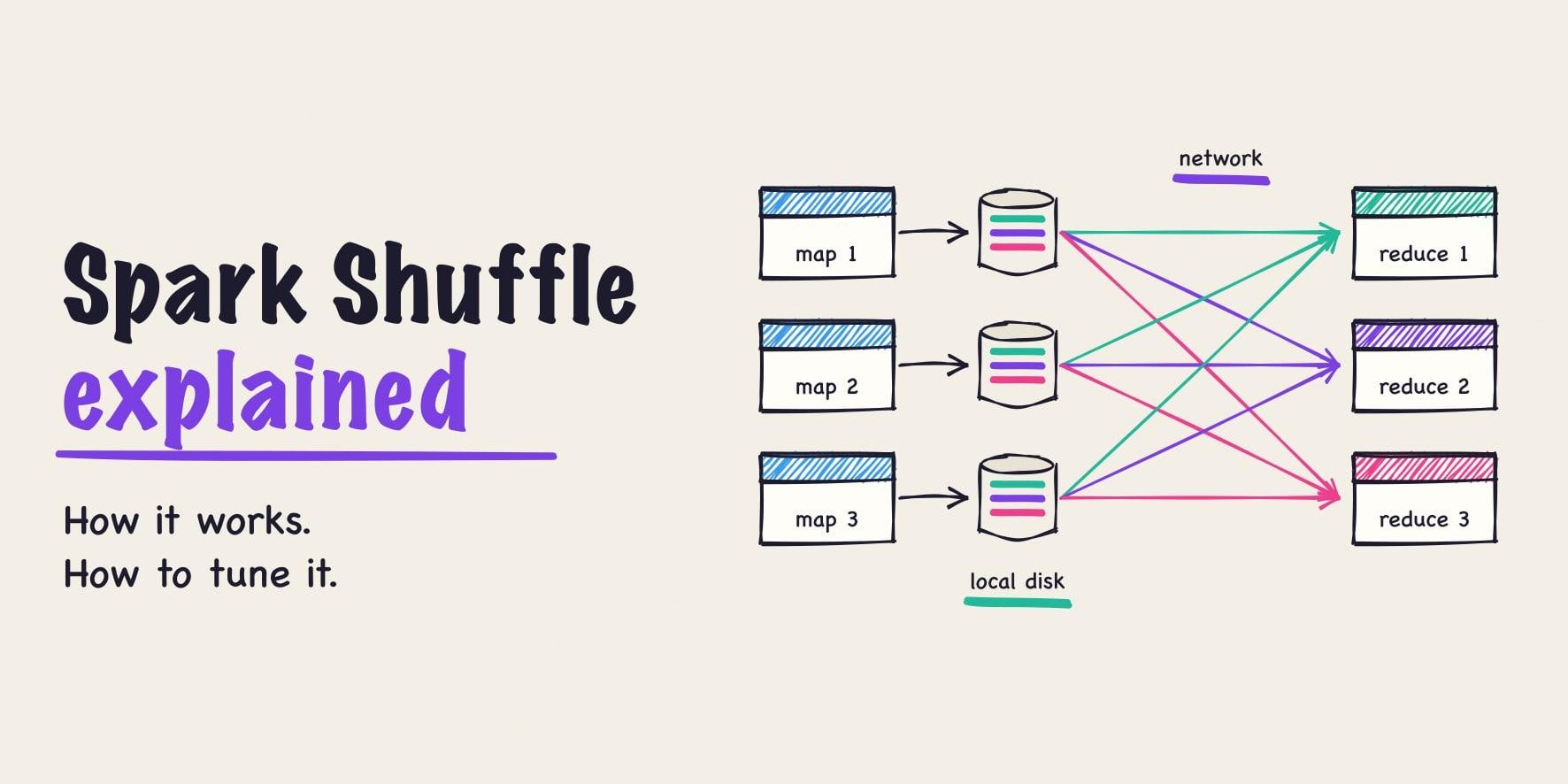
- Spark shuffle, explained for slow or spilling stages.
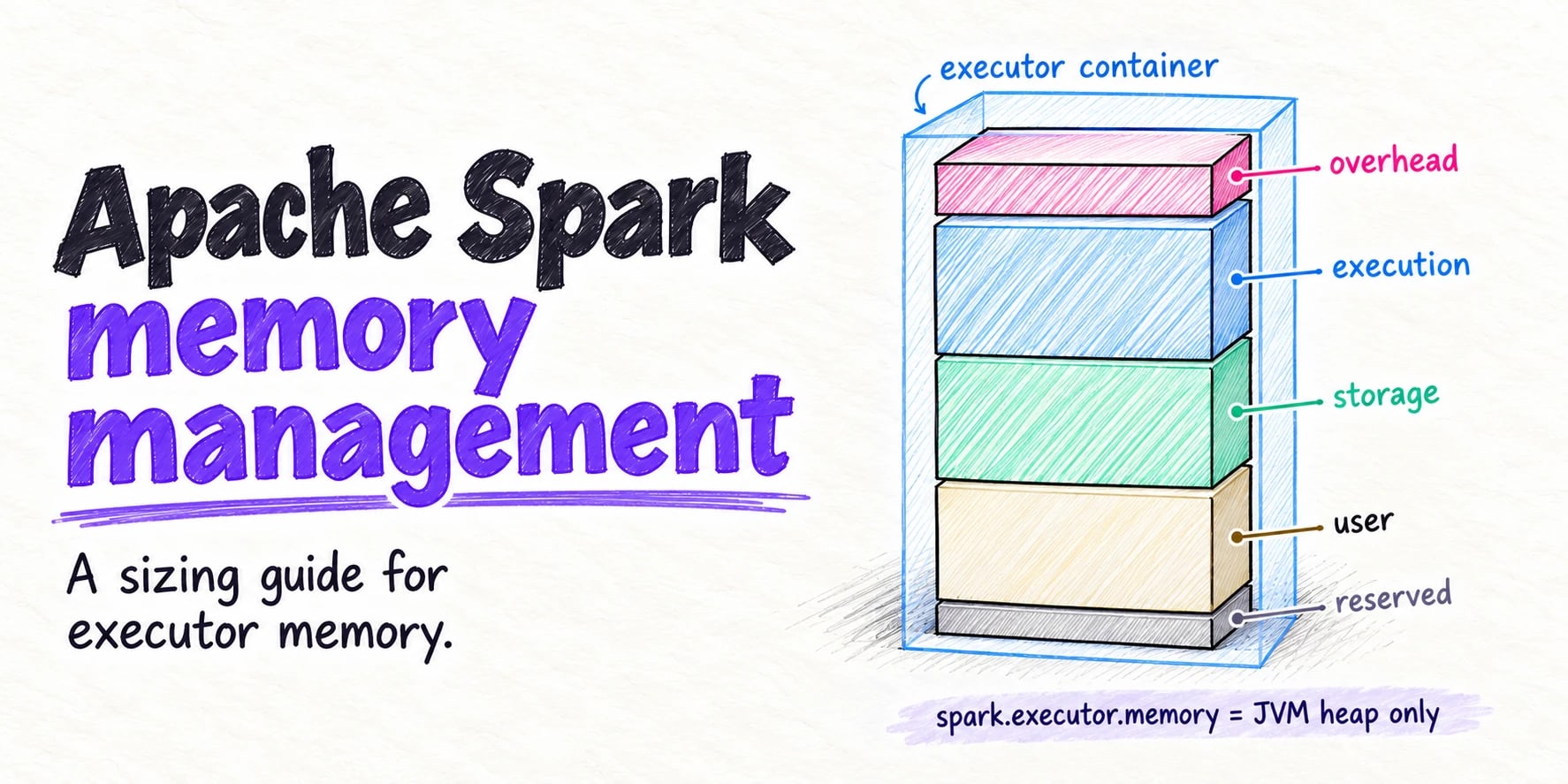
- Spark memory management for out-of-memory errors.
- Amazon EMR pricing to see what those slow stages cost.
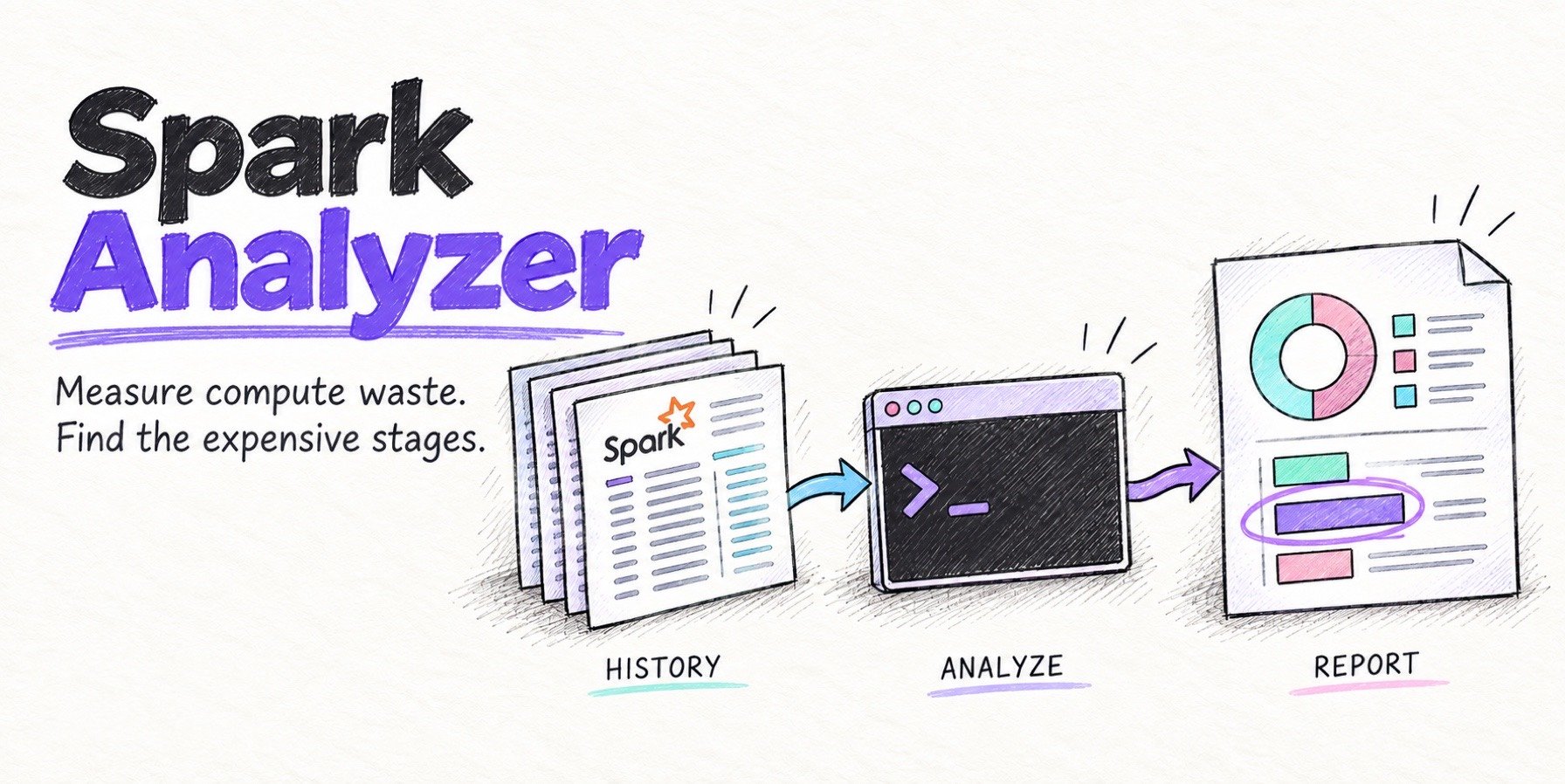
To check many applications at once instead of one at a time, Spark Analyzer is a free command-line tool from Onehouse. It reads the same Spark History Server, works with EMR and EMR Serverless, and ranks your applications by how much of their compute was wasted.